 Nileva

Shopify wholesale pricing means showing a lower price to the businesses that buy from you, such as stockists, salons, cafés and resellers, while every other shopper keeps seeing your retail price. This guide maps the four ways to set it up on Shopify, how to decide who gets which price, how to add quantity breaks, minimums and payment terms, and how to check that the price a buyer sees is the price they pay. Every price example is worked out in full.
Key takeaways
- There are four ways to run wholesale prices on Shopify: discount codes, a second store, Shopify's native B2B catalogs and a wholesale pricing app. Each puts the lower price in a different place.
- Shopify's native B2B is no longer reserved for Plus: it runs on Basic, Grow, Advanced and Plus, with limits below Plus (Shopify Help Center).
- Decide who first (a customer tag, a group, a company), then how much (percent off, amount off or a fixed price).
- Show the wholesale price on the product page before checkout, and charge it at checkout without a code.
- Add quantity tiers, minimums and payment terms only when your buyers need them.
What wholesale pricing on Shopify means
Your retail price is the price in the product's price field, the one a shopper sees. A wholesale price is a lower price for trade buyers, usually set as a percentage below retail or as a fixed number per product. The hard part on Shopify is not the arithmetic. It is making sure only the right people see the lower number, and that checkout charges it.
Most stores tell trade buyers apart with a customer tag: a label such as wholesale on the customer's account in Shopify admin (customer tags). A tier is a group of buyers who share a price level, for example Bronze at 5% off and Gold at 20% off. Shopify's native B2B adds a third idea, the company: a business record with its own locations and contacts.
With those three terms you can read every option below.
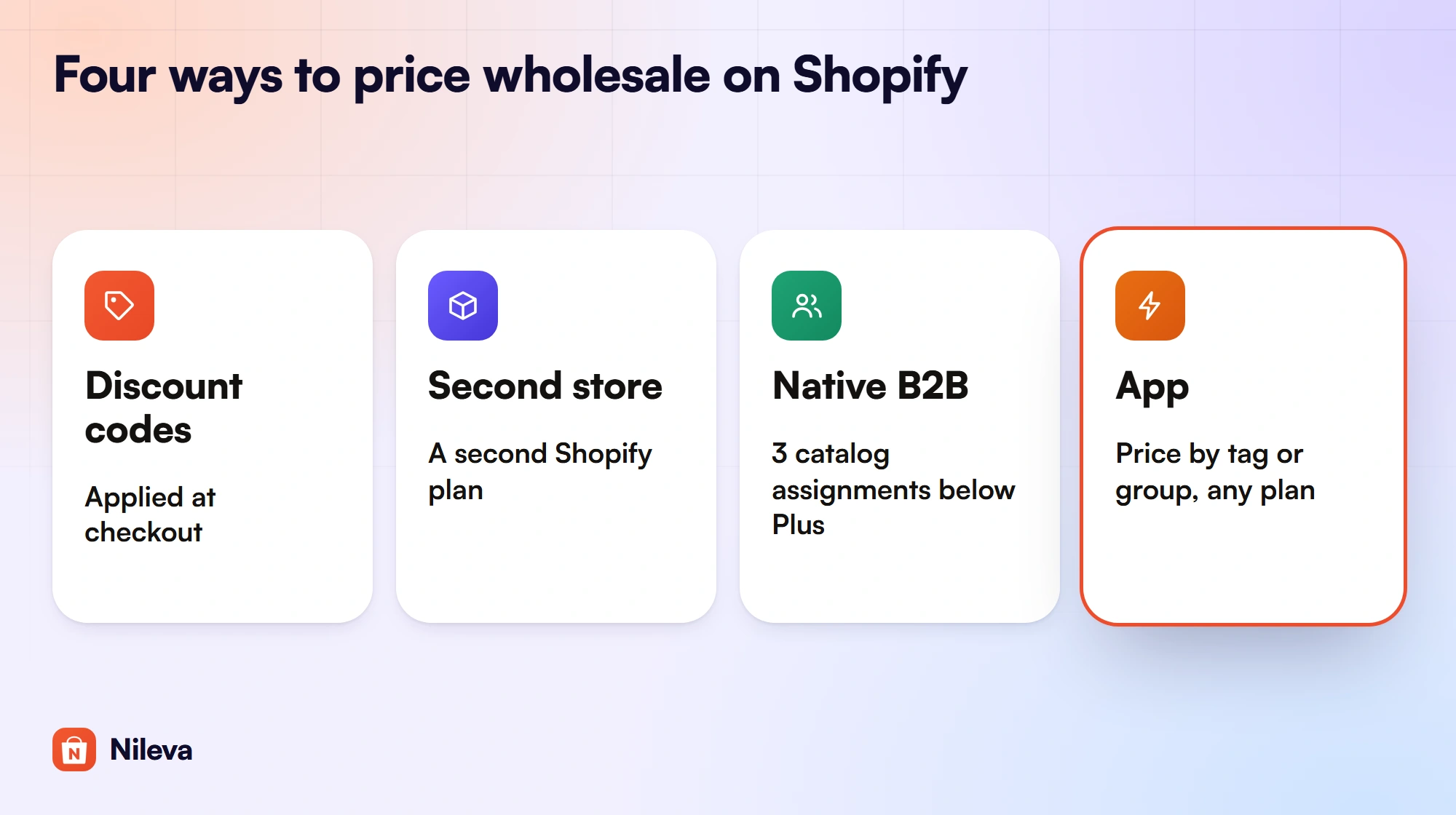
Four ways to set up Shopify wholesale pricing
Each method answers the same three questions differently: who sees the lower price, where it appears, and what it costs to run.
| Method | Who sees the lower price | Shown before checkout | Shopify plan | Main trade-off |
|---|---|---|---|---|
| Discount codes | Anyone who has the code | No, applied at checkout | Any | Up to 5 product or order codes per order; a code can be passed on |
| Separate wholesale store | Anyone who reaches that store | Yes | A second paid plan (Basic from $25/month billed monthly) | Two stores and two catalogs to keep in step |
| Native B2B catalogs | Buyers at companies whose B2B market has the catalog | Yes | Basic and up; 3 catalog assignments below Plus | Catalogs assigned straight to a company location need Plus |
| Wholesale pricing app (B2B Wholesale Pricing) | Customers matched by tag, group, login status, product or market | Yes, on product pages, cards and search | Any plan, for public App Store apps with Functions | The app plan's rule quota |
Discount codes
The simplest route is a code such as TRADE20 that you email to trade buyers. It costs nothing extra, but the buyer browses your store at retail prices and only sees the wholesale price once the code is applied at checkout. Shopify also caps codes: a customer can use at most 5 product or order discount codes and 1 shipping code on the same order (Shopify discount combinations). And a code works for whoever types it, so it can travel beyond the buyers you gave it to.
A separate wholesale store
Some merchants open a second Shopify store just for trade. Buyers see wholesale prices on every page, because every price in that store is a wholesale price. The cost is a second plan (Basic is $25 a month billed monthly, $19 billed yearly, per Shopify pricing) and a second catalog: every new product, photo, stock count and description has to be kept in step across two stores. Shopify itself says B2B can run alongside retail in one store or in a separate B2B-only store (Shopify B2B).
Shopify's native B2B catalogs
Since April 2026, Shopify's own B2B tools are part of Basic, Grow and Advanced, not only Plus. A catalog is a price list: it can include or exclude products, adjust prices by a percentage and set fixed prices (B2B catalogs). Catalogs are assigned to B2B markets, and the company locations in a market buy at that catalog's prices.
The limits sit below Plus. Basic, Grow and Advanced allow 3 catalog assignments to active B2B markets, and assigning a catalog directly to one company location is Plus only (plan features). Native B2B also expects every trade buyer to be set up as a company. Our article on B2B on Shopify without Plus walks through each plan's B2B features row by row.
A wholesale pricing app
An app sets prices from rules: which customers, which products, what discount. "Stores on any plan can use public apps that are distributed through the Shopify App Store and contain functions" (Shopify Functions), and a discount function is how an app charges its price at checkout.
B2B Wholesale Pricing works this way. You create a rule that targets customers by tag, Customer Group, login status or market, and products by product, collection or product tag. The buyer sees their price on the product page, collection cards and search results, and checkout applies it through Shopify's discount function, with no coupon code. In the docs' words, "the price the customer sees on the PDP is the price they pay at checkout". The rest of this guide uses the app for the parts native B2B doesn't cover, and names the plan each feature needs.
Which route fits your store
No route is right for every store, so match it to how your buyers actually look:
- Discount codes fit a handful of trusted buyers or a short trade promotion, where it doesn't matter that product pages show retail prices.
- A second store fits when wholesale is really a separate business, with its own range, shipping and staff, and you accept the double upkeep.
- Native B2B fits when your buyers are companies with locations, and you want what Shopify builds into them: company profiles, quantity rules, net terms and PO numbers, within 3 catalog assignments below Plus.
- An app fits when you have many trade buyers known by a tag or a tier, and you want Shopify wholesale pricing without creating a company for each one. It also adds tools to gate prices from guests and vet new applicants.
Choosing who gets the wholesale price
Before you set a single number, decide how a trade buyer is recognised. A wholesale rule in the app offers these audiences:
- All customers, guests included.
- Logged-in customers: anyone signed in to an account. Good for open "trade" pricing for any registered account.
- Guest visitors: shoppers who are not signed in. Rare, but useful for an introductory price.
- Customer tags: only customers who carry a tag such as
wholesaleorb2b-gold. - Customer groups: members of one of the app's Customer Groups, described below.
- Excluded customers: people blocked from a rule even if they match it.
All customers and logged-in customers work on the Free plan; targeting by customer tag or group starts on Essential. The create-a-rule guide lists every field.
Customer tags and customer groups
Tags are the plain Shopify tool: you add wholesale to a customer in Shopify admin and the rule picks them up. Customer Groups are the app's tidier version. You create a group such as "Gold Members" with the tag b2b-gold, add customers to it, and the app applies the tag for you. The docs suggest a starting ladder of Bronze 5%, Silver 10%, Gold 20% and Diamond 30%, though you name and price groups as you like.
When one business has several people ordering, the app's Companies feature groups them. You assign a Customer Group to the company and every contact gets its tag. These are the app's own records and need neither Plus nor Shopify's native B2B. For a deeper look at targeting choices, see customer-specific pricing.
Logged-in visitors, guests and markets
A rule can also be limited to one or more Shopify Markets (Advanced plan), so domestic and international buyers can have different wholesale prices. Market targeting combines with the customer and product conditions: all of them must match. If you sell in several currencies, note how values convert. You type Fixed price and Amount off values in your store's currency, and the app converts them at Shopify's rate for a buyer paying in another currency. A Percent off value needs no conversion.
Choosing the price: percent off, amount off or fixed price
A rule uses one of three discount types. Here they are on one product.
| Discount type | Rule | Buyer pays |
|---|---|---|
| Percent off | 20% off | $40 × 0.80 = $32.00 |
| Amount off | $5 off per item | $40 − $5 = $35.00 |
| Fixed price | $29.99 | $29.99 |
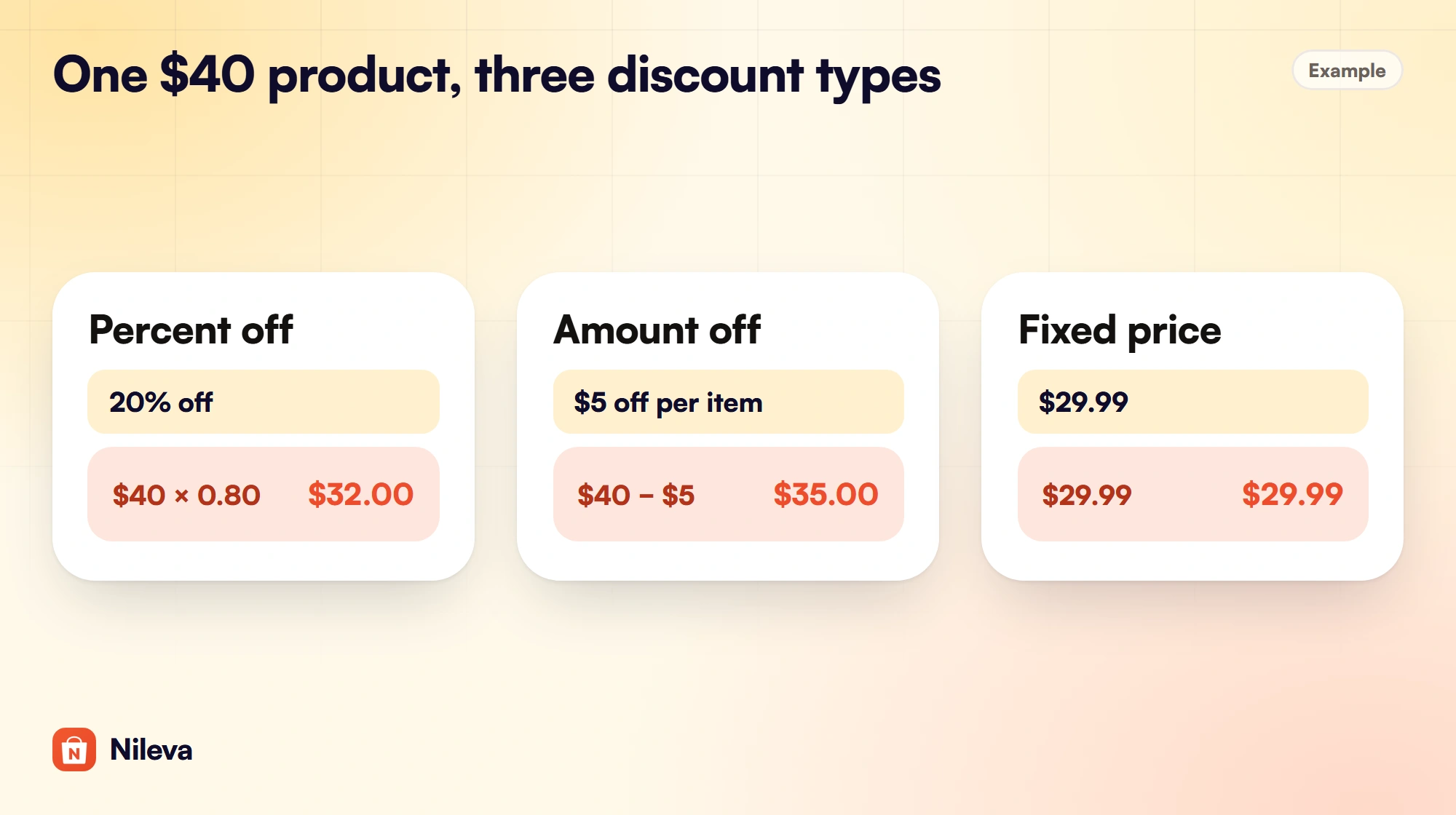
Percent off scales with the product: one rule covers a whole collection whatever the prices. Amount off takes the same sum from each unit, so it is a deeper cut on cheap items than on dear ones. Fixed price sets the exact number, which suits a printed trade price list where every product has its own price. On the Advanced plan, a rule can also set a different discount for each variant of a product.
If you raise a retail price later, a Percent off rule follows it and a Fixed price rule doesn't. Pick the type that matches how you actually agree prices with buyers.
Adding quantity breaks on top
A quantity break rewards bigger orders: the more units, the lower the unit price. In the app this is a volume pricing rule, separate from the wholesale rule. Tiers can count units (Quantity) or order value (Amount, from Essential), and each tier can be Percent off, Amount off or Fixed price.
The docs' example tiers are 3 to 9 units at 5% off, 10 to 49 at 10% off and 50 or more at 15% off. Example: on a $40 product, a buyer who orders 12 units falls in the 10% tier and pays $36.00 a unit, $432.00 in all; a buyer who orders 2 units pays the full $40.00. A "Volume Pricing Table" block on the product page lists the tiers, and it follows the selected variant and quantity as the buyer changes them.
You also choose how units are counted. Same variant counts each variant on its own, Mix variants adds up the variants of one product, and Mix products adds up every product in the rule (the last two need Advanced). In the docs' example, 3 shirts in size M and 4 in size L reach a 5-unit tier under Mix variants, but not under Same variant. Our guide to quantity breaks covers tier design in depth.
Best price or stacked: a worked example
When a buyer qualifies for a wholesale rule and a volume tier at once, the app needs to know whether they compete or combine. That is the Discount combination setting in Settings → General, which the docs call the discount strategy.
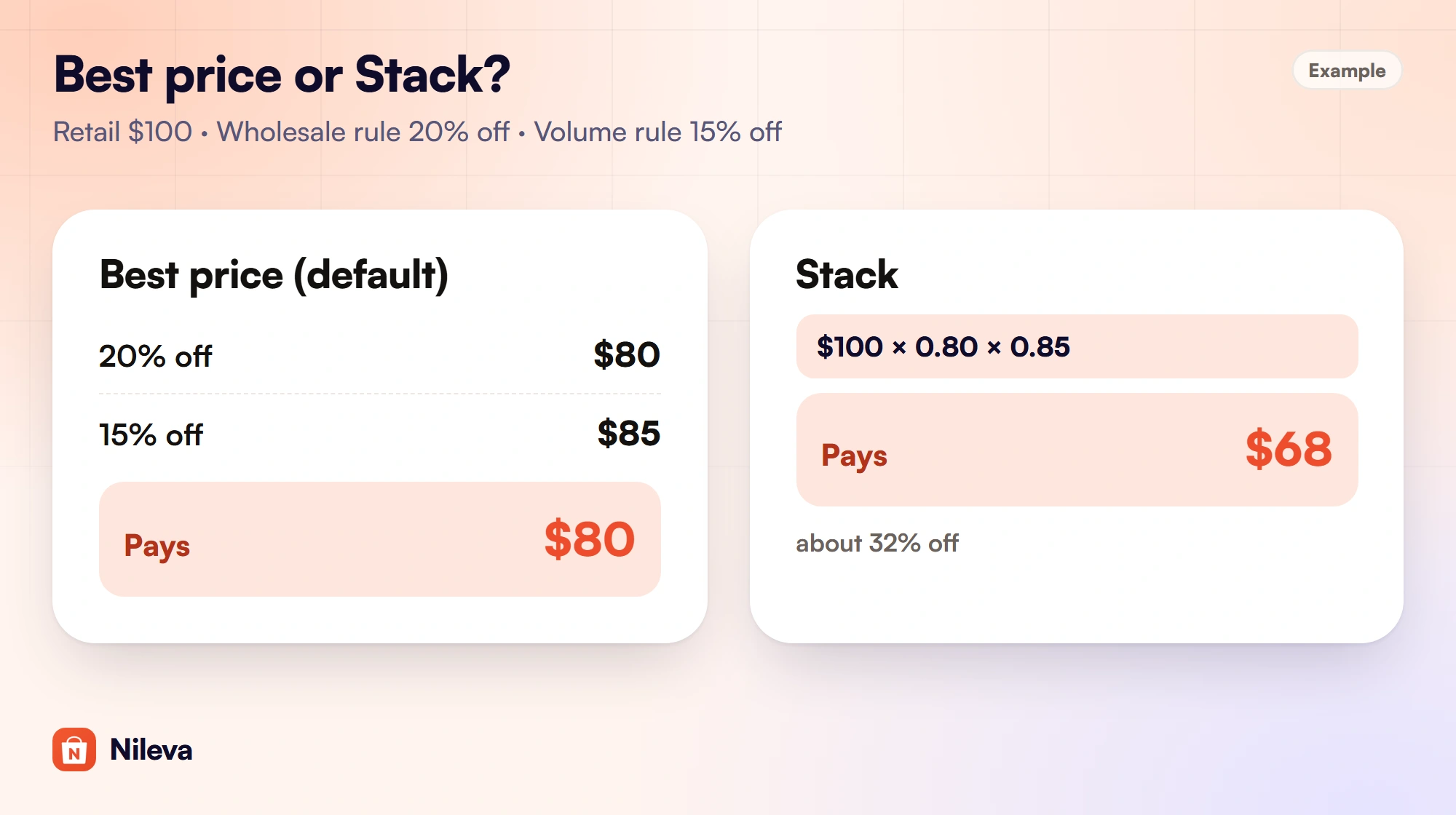
Take a $100 product, a 20% wholesale rule and a 15% volume tier. Under Best price, the default, the app works out both prices, $80 and $85, and charges the lower: the buyer pays $80. Under Stack, both apply in turn: $100 × 0.80 × 0.85 = $68, about 32% off. Stacking rewards volume on top of trade status, but it can cut deeper than you meant, so run your own margins through it first. The discount strategy page shows where to change it.
Showing wholesale prices on your storefront
A wholesale price only works if the buyer sees it while shopping. The app's B2B Prices embed is one switch in the theme editor (Online Store → Themes → Customize → App embeds → Nileva B2B Wholesale). Once it is on, a matched buyer sees their price on the product page, the sticky add-to-cart bar, collection and search cards, and the featured product on the home page.
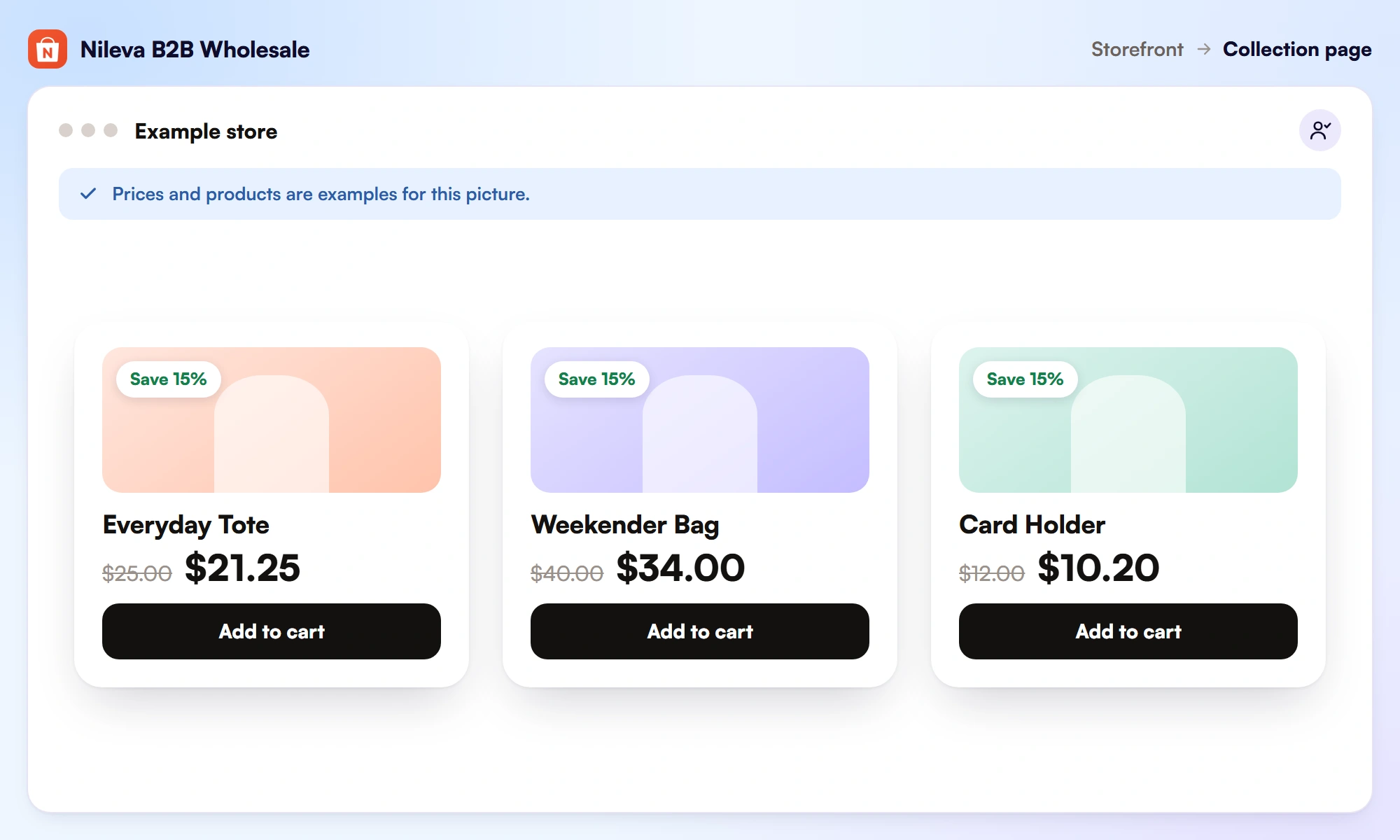
There are two display modes. Strikethrough, the default, shows the retail price crossed out beside the buyer's price and a badge, for example $25.00 struck through, then $21.25 and "Save 15%". Replace shows only $21.25. The badge always shows the total saving, so a 30% wholesale rule stacked with a 5% volume tier reads "Save 34%" rather than either rule's own number. The embed has built-in support for Dawn, Horizon, Craft and Refresh plus a general fallback, and the app doesn't modify your theme files.
Keeping wholesale prices private
Showing a lower price to tagged buyers doesn't stop a guest seeing your retail price, and some trade sellers would rather guests saw no price at all. The app's Catalog Visibility setting (Advanced plan) masks prices for everyone outside the audience you choose, either any logged-in customer or specific customer groups. A gated shopper sees the currency symbol with the number blurred, and an "Unlock wholesale price" button that leads to Shopify's sign-in. No B2B price is shown to a gated shopper, though the page source still holds the theme's own price, so treat it as a sign-in gate rather than a secret. A second mode also blocks add to cart and checkout. It hides prices, not products. Our guide to hiding prices until login covers the modes and their limits.
Minimums, approvals and payment terms
Minimums. On the Advanced plan, a volume rule can block checkout until the buyer reaches its first tier: a minimum order quantity on quantity rules, a minimum order value on amount rules. The product page states the minimum under the tier table, and checkout names the product that is short. The minimum value is counted per cart line, and there is no cart-wide minimum today. See the minimum order quantity guide and the minimum order docs.
Approvals. Most wholesalers vet buyers before granting trade prices. The app's registration form, on every plan, saves each application as Pending and emails you. You approve, optionally picking a Customer Group so the tag is applied and a welcome email goes out, or reject with a link to edit and resubmit. Read more in the wholesale registration form guide.
Payment terms. Shopify's net terms are on all four B2B plans (plan features). The app's Draft Orders feature lets an eligible buyer press "Submit Order for Approval" instead of paying. You add shipping and send one Shopify invoice, on Due on receipt or Net 15, 30, 45, 60 or 90. The term comes from your choice on the order, then the buyer's Customer Group default, then your shop default. See the plans on the app page for which plan includes it, and our guide to net 30 payment terms.
A wholesale pricing setup checklist
Here is the order we suggest, with where each step lives in the app and the plan it needs.
| Step | Where in the app | App plan |
|---|---|---|
| Create a wholesale rule for all or logged-in customers | Wholesale Pricing → Create rule | Free (1 rule) |
| Target the rule at a customer tag or Customer Group | The rule's Customer eligibility | Essential |
| Turn on the B2B Prices embed | Theme editor → App embeds → Nileva B2B Wholesale | Any |
| Add quantity tiers and the table block | Volume Pricing → Create rule; "Volume Pricing Table" block | Free (1 rule) |
| Add the registration form | Customers → B2B Registration | Free |
| Hide prices from guests | Pricing → Catalog Visibility | Advanced |
| Block checkout below a minimum | Volume rule → Block checkout below the first tier | Advanced |
The plans are Free, then Essential at $10, Advanced at $30 and Platinum at $80 a month, and each paid plan has a 7-day free trial once per store.
An example setup, start to finish
Example: a store that sells coffee beans, $20 a bag at retail, now supplies cafés. It creates a Customer Group "Cafés" with the tag b2b-cafe and a wholesale rule of 20% off for that tag, so a café pays $16.00 a bag. It adds a volume rule of 5% off from 10 bags. A café that orders 12 bags qualifies for both. Under Best price it pays the lower of $16.00 and $19.00, so 12 × $16.00 = $192.00. Under Stack it pays $20 × 0.80 × 0.95 = $15.20 a bag, so 12 × $15.20 = $182.40. The store keeps Best price, turns on the embed, adds the registration form so new cafés can apply, and its Shopify wholesale pricing is live on one store, on the Essential plan for the tag rule.
To test, sign in to your storefront as a test customer who matches the rule, not as the store admin, and open a product page.
Why wholesale prices sometimes don't show
When a buyer reports retail prices, work through these checks in order:
- The embed is on. Online Store → Themes → Customize → App embeds → Nileva B2B Wholesale, switched on and saved.
- The rule is Active, and today falls inside its start and end dates if it has them.
- The customer matches. Their account carries the exact tag the rule asks for. Test as a customer, not while signed in as admin.
- The product is in scope: in the rule's product list, collection or product tag.
If several rules match, the app first scores how specific each one is, then picks the better price, and only then uses the priority number as the final tie-break. A tag or group beats "logged-in", and a specific product beats a collection. That has a catch the changelog calls out: a logged-in rule with 0% off outranks an all-customers rule with 15% off, because it is more specific. Also remember that Catalog Visibility comes first for gated shoppers: they see no B2B price until they qualify. The prices-not-showing guide has the full list.
Frequently asked questions
How do I set up wholesale pricing on Shopify?
Choose a method from the table above. With the B2B Wholesale Pricing app, go to Wholesale Pricing → Create rule, pick the audience, the products and the discount, then Save. Turn on the B2B Prices app embed so buyers see the price on your storefront.
Can I show wholesale prices only to some customers?
Yes. Target the rule at customer tags or Customer Groups (Essential plan and up), and customers without the tag keep seeing retail prices. On native B2B, only buyers at companies whose market has the catalog get its prices.
Do I need Shopify Plus for wholesale pricing?
No. Native B2B runs on Basic, Grow, Advanced and Plus (Shopify plan features), and public App Store apps with Functions work on any plan.
Do wholesale and volume discounts stack?
In the app you choose. Best price, the default, charges whichever price is lower; Stack applies both, so 20% and 15% on $100 gives $68.
Can I set different wholesale prices per country?
Yes. Use Market eligibility on a rule to limit it to specific Shopify Markets; this needs the app's Advanced plan.
Try it
Set up your first wholesale rule on the Free plan in a few minutes.


