 Nileva

A stockist asks for 30 days to pay. Before you say yes, you need to know three things: whether your Shopify plan can record that promise on the order, how to give it only to buyers you trust, and how the money gets collected and marked paid. This guide to Shopify net 30 payment terms answers each in turn, with the native settings first and the app workflow for tagged buyers second.
Key takeaways
- Net terms are part of Shopify B2B on Basic, Grow, Advanced and Plus; you don't need Plus to offer net 30.
- Shopify supports net 7, 15, 30, 45, 60 and 90, due on fulfillment and a fixed date, and counts net terms from the day the order is placed.
- Deposits, partial payments and setting terms from a checkout Function are Plus only.
- With the Draft Orders feature of B2B Wholesale Pricing, each customer group can have its own default term, applied when the buyer submits their cart.
- Shopify doesn't capture the money for you when a term ends: you charge a saved card or mark the order paid when the transfer arrives.
What net 30 means
Net 30 means the buyer pays the full amount within 30 days instead of at checkout. You ship the goods now and carry the unpaid amount as a receivable until the due date.
Shopify starts the count on the day the order is placed (Shopify Help Center: payment terms). Example: an order placed on December 1, 2026 with Net 30 is due on December 31, 2026. On Net 60 the same order would be due on January 30, 2027. On a draft order you send as an invoice, Shopify's draft-order page counts the net days from the draft's issue date instead (create a draft order).
Net terms are credit, and Shopify doesn't decide who deserves it. You do. A simple policy is to start new buyers on payment up front and move them to net terms once they have paid a few orders on time; the section on who should get which term, further down, sets out that ladder.
The payment terms Shopify supports
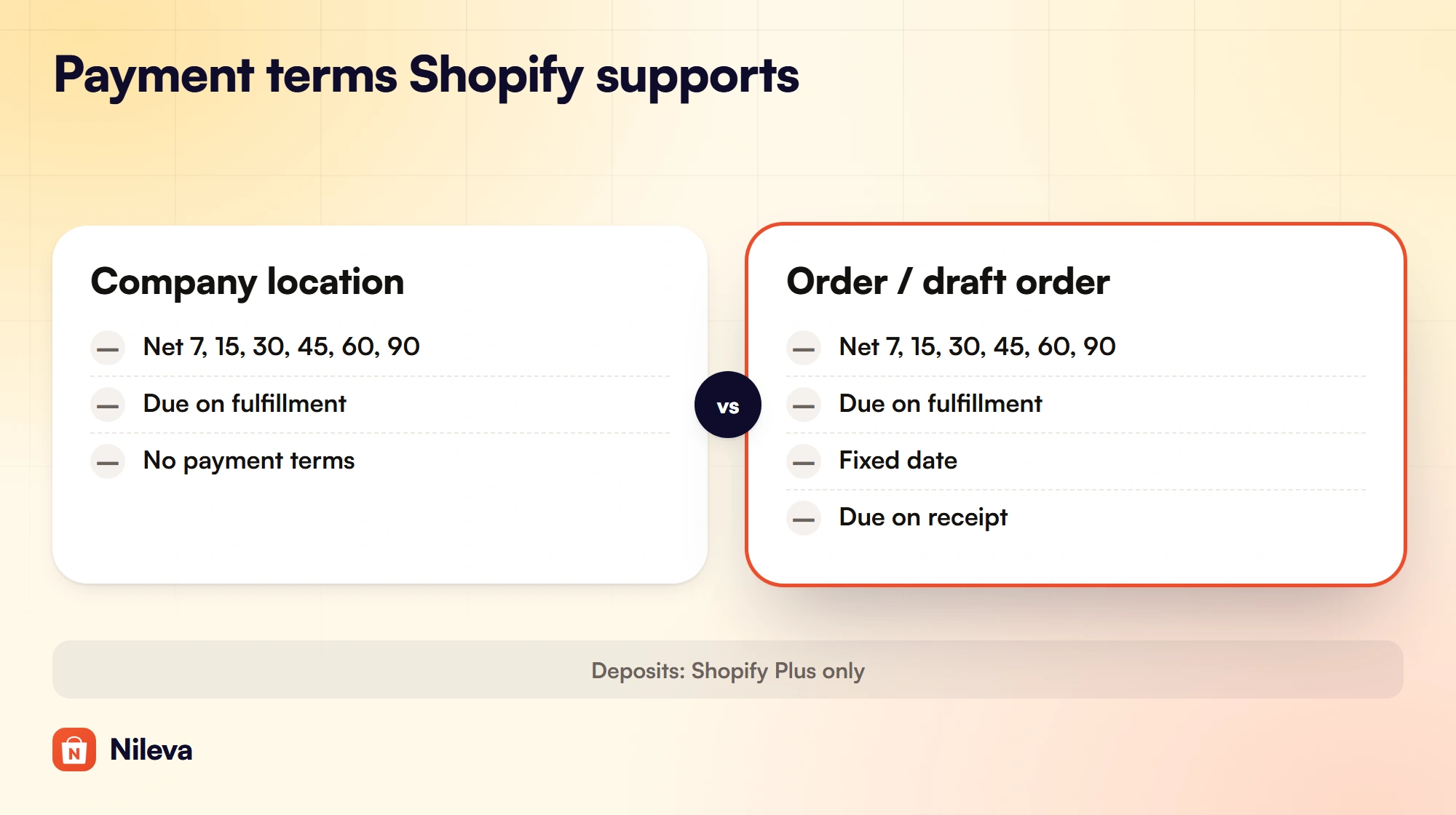
Shopify's payment terms come in a fixed set. Which ones you can use depends on where you set them: as a standing term on a B2B company location, or on one order or draft order.
| Term | On a company location | On an order or draft order |
|---|---|---|
| No payment terms (due immediately) | Yes, the default | Yes |
| Net 7, 15, 30, 45, 60, 90 | Yes | Yes |
| Due on fulfillment (after every item is fulfilled) | Yes | Yes |
| Fixed date (a calendar date you pick) | No | Yes |
| Due on receipt | Not listed | Yes, in the draft order's term menu |
| A percentage deposit up front | Plus only | Plus only |
The source for the first four rows is the Shopify payment terms page; due on receipt and the deposit come from the page on creating a draft order. There is no Net 20 or Net 75: a length outside the list needs a fixed date on the order.
Shopify net 30 payment terms without Plus
A lot of older advice says net terms need Shopify Plus. Shopify's current plan table says otherwise: B2B, including net terms, payment reminders, vaulted credit cards, checkout to draft and draft order to invoice, is on Basic, Grow, Advanced and Plus (B2B plan features). For the full plan-by-plan picture, see which plan has net terms.
Three payment features are still Plus only:
- Deposits. Requiring a percentage up front, on a company or on a draft order.
- Partial payments and payment requests per fulfillment. Collecting in instalments as you ship.
- Terms set by a Function at checkout. A payment customization Function can set payment terms with the
paymentTermsSetoperation, but Shopify states "This operation is only available on stores with the Plus plan" (Payment Customization Function API).
So on Basic, Grow and Advanced, net 30 lives on the order: you set it on a company location for B2B checkout, or on a draft order you send as an invoice.
The native way: payment terms on a draft order
A draft order is an order you build in Shopify admin and send to the buyer. It is the quickest way to give one buyer net 30 on one order.
- In Shopify admin, go to Orders → Drafts and click Create order.
- Add the products, the customer, any discount and the shipping.
- In the Payment section, select Payment due later.
- In the Payment terms menu, choose Net 30 (or another term).
- Save, then send the invoice to the buyer.
These steps follow Shopify's create a draft order page. The draft method works well for a handful of accounts. Its weak point is that every order starts with you typing it in, and you have to remember which buyer gets which term.
If you use Shopify's B2B companies, the term can sit on the company location instead, and that location's buyers check out with it. Shopify can also require a location to submit every order as a draft for your review (B2B draft orders).
Giving net terms only to approved buyers
Many stores sell to trade buyers who are customers with a tag, not Shopify B2B companies. For them, the Draft Orders feature in B2B Wholesale Pricing lets approved buyers order on account from the normal cart, and uses Shopify's built-in payment terms on the result (Draft Orders overview).
The buyer submits the cart for approval
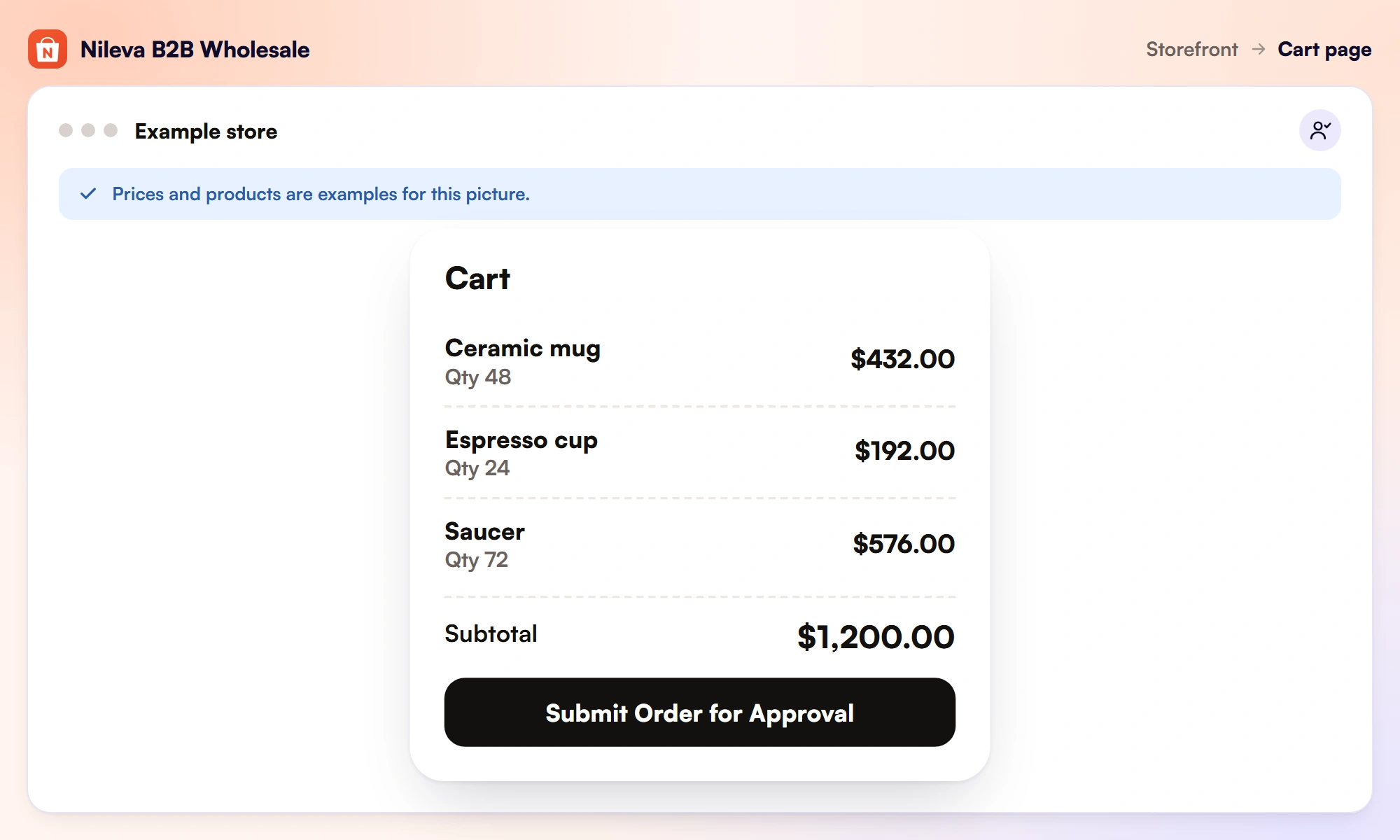
For an eligible buyer, the app replaces the theme's Checkout button on the cart page and cart drawer with Submit Order for Approval, and hides express buttons such as Shop Pay. The buyer fills the cart as usual and clicks it. The whole cart is sent to you as a pending request, no payment is taken, and a logged-in buyer gets an email listing what they ordered.
Retail shoppers are not affected: anyone who isn't eligible still sees the normal Checkout button. You choose who is eligible: Approved B2B customers only (customers whose tag matches one of your customer groups, the default), Any logged-in customer, or Everyone.
You confirm, add shipping and send one invoice
Requests appear under Orders → Draft Orders in the app, with the items, the customer, the subtotal and the payment term already filled in. You can enter a Shipping cost and a Shipping label before you confirm.
Example: a request with a subtotal of $1,200.00. You enter 45 as the shipping cost and "UPS Ground" as the label, and the page shows Shipping (UPS Ground) $45.00 and a total of $1,200.00 + $45.00 = $1,245.00. The buyer's invoice shows the same $1,245.00.
Click Confirm & send payment link. The app creates a Shopify draft order and Shopify emails the buyer one invoice. On Due on receipt it carries a pay-now checkout link; on a net term it shows the due date and the buyer pays later. If you trust every eligible buyer, an optional store-wide auto-create setting sends the invoice the moment a logged-in buyer submits, without shipping, since there is no review step to add it.
How the term is chosen
The app's Draft Orders can use Due on receipt, Net 15, Net 30, Net 45, Net 60 and Net 90. For each order it picks the term in a fixed order, and the first match wins (Draft Orders payment terms):
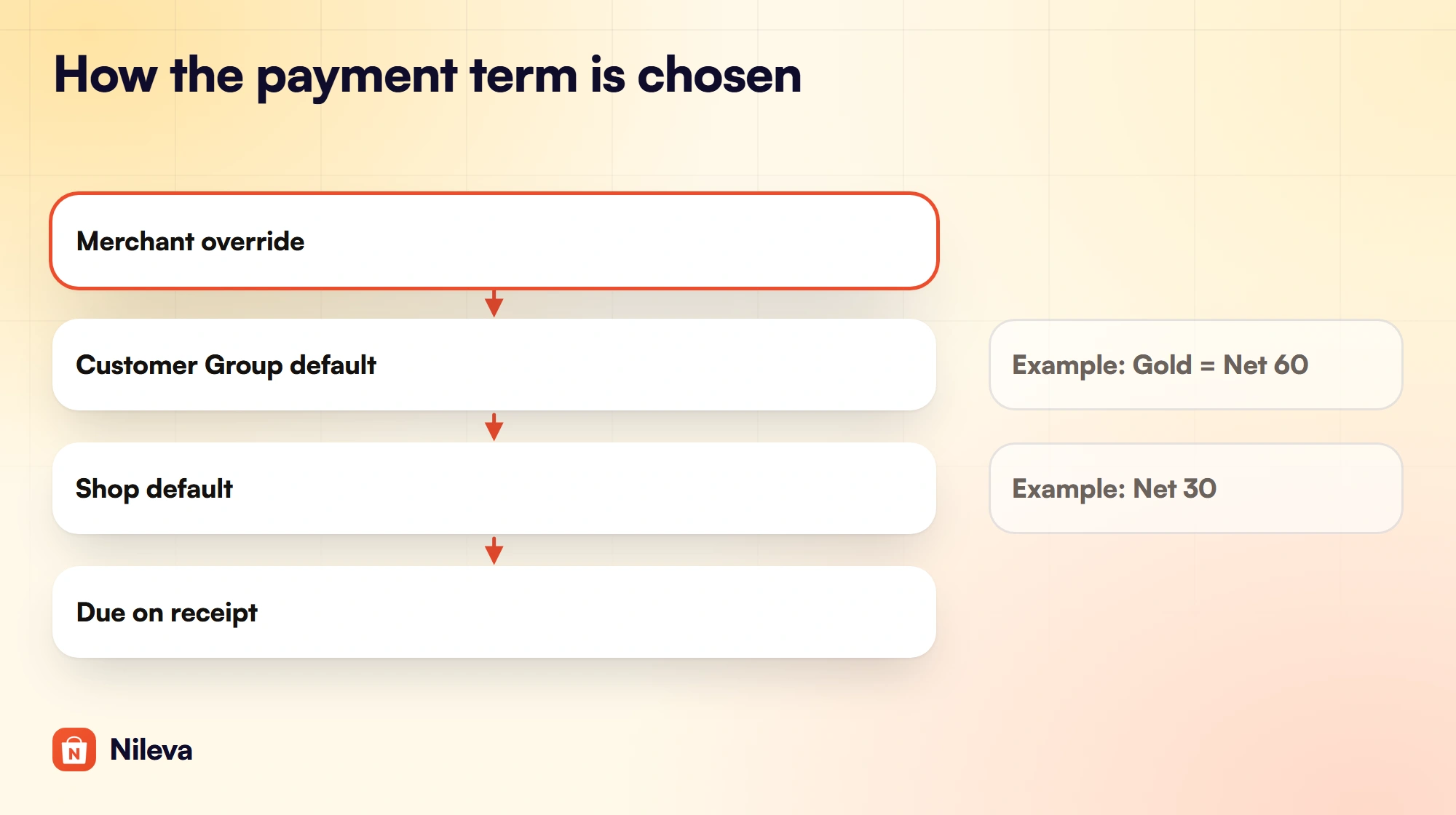
Using the docs' example settings, a shop default of Net 30 and a Gold customer group set to Net 60:
| Situation | Term used | Why |
|---|---|---|
| A Gold-group buyer submits | Net 60 | The group default beats the shop default |
| A B2B buyer in no group submits | Net 30 | The shop default applies |
| You change the term before confirming | Your choice | Your override on the order wins |
| No group term and no shop default set | Due on receipt | The fallback |
To set a group's term, open Customers → Customer Groups, open the group and pick its B2B payment term. The shop default is under Orders → Draft Orders → Settings → Shop default payment term. The term is worked out when the buyer submits, so the pending request already shows it.
Net terms on a negotiated quote
Some buyers don't order from the cart at all: they ask for a price first. The app's Quotes feature lets you set a payment term on each quote: Due on receipt, Net 15, Net 30, Net 60, Prepay 50% or Custom.
When the buyer accepts, the app creates a Shopify draft order that carries the quote number in its note. Due on receipt sends the buyer to a checkout invoice. The other terms email a PDF invoice with your payment instructions and a highlighted line such as "Net 30 — pay within 30 days"; the buyer pays offline and you mark the order paid. This works on Basic, Grow, Advanced and Plus. The full workflow is in our guide to a quote with payment terms.
Use quotes when the price or the terms are open to negotiation, and Draft Orders when the buyer orders at their usual prices and only the payment is deferred.
Who should get which term
Shopify records the term; the credit decision is yours. The app's documentation suggests this ladder as a starting point, and it maps neatly onto customer groups.
| Term | Typical use (the app docs' guidance) | Where you can set it |
|---|---|---|
| Due on receipt | New buyers, smaller orders, anyone without credit | Draft Orders, Quotes, Shopify draft orders |
| Net 15 | Trusted regular buyers, short cycle | Draft Orders, Quotes, Shopify |
| Net 30 | Standard B2B credit, established relationships | Draft Orders, Quotes, Shopify |
| Net 60 | Accounts with long payment cycles | Draft Orders, Quotes, Shopify |
| Prepay 50% | Custom or very large orders | Quotes only (a Shopify deposit needs Plus) |
In practice that can be as simple as three groups. New approved buyers go into a group on Due on receipt. After they have paid a few orders on time, you move them to a group on Net 30. Your largest accounts sit in a group on Net 60. Because the term is worked out when the buyer submits, moving a buyer to another group changes the default on the orders they submit from then on.
Before the first net 30 order goes out, write down four answers and share them with the buyer:
- Who qualifies. For example, approved trade accounts with three orders paid on time.
- Which term. One standard term, such as Net 30, is easier to manage than a different length for every account.
- How they pay. The bank details you will put in your manual payment method, and whether a saved card is charged on the due date.
- What happens when a payment is late. Whether you hold the next order, move the buyer back to Due on receipt, or both. Moving them back is one change of group.
Getting paid: reminders and marking orders paid
Offering terms is the easy half. Collecting is where most of the work sits, and Shopify gives you a few tools for it.
Reminders and overdue orders. Shopify's plan table lists payment reminders on all four B2B plans (plan features). After the due date, an unpaid order shows as Overdue in the buyer's customer account. In your admin, you can create a filter view of orders that are Due, which lists everything due today or overdue (payment terms).
Nothing is charged automatically. Shopify states that payments aren't captured automatically when the terms expire. If the buyer has a saved card, you charge it from the order in admin. If they pay by bank transfer, you record the payment yourself; until you do, the order is not marked paid.
Marking a transfer as paid. Set this up once, then repeat it per order:
- In Settings → Payments, under Manual payment methods, add one for Bank transfer with your bank details in the payment instructions, and one for Wire transfer if you have international buyers.
- When money lands, open Orders and find the order (an order from a quote carries the quote number in its note; you can also filter on a pending payment status).
- Open it, choose More actions → Mark as paid and pick the method that matches how you were paid.
These steps come from the app's quote documentation and apply to any Shopify order paid offline. For a quote, the app then links the paid order back to the quote in your Quotes inbox.
Frequently asked questions
Can I offer net 30 without Shopify Plus?
Yes. Net terms are part of Shopify B2B on Basic, Grow, Advanced and Plus. Deposits and partial payments are the parts that still need Plus.
Can Shopify set payment terms automatically at checkout?
Setting terms from a payment customization Function is Plus only. On other plans, set the term on a company location for B2B checkout, or on a draft order you send as an invoice.
Can different customers get different terms?
Yes. Shopify company locations carry their own terms natively. With the app's Draft Orders, each customer group can have a default term, and you can still change it on any order before you confirm.
Which terms can the app's Draft Orders use?
Shopify's built-in terms: Due on receipt and Net 15, 30, 45, 60 or 90.
How do I record a bank transfer for a net 30 order?
Open the order in Shopify admin, choose More actions → Mark as paid and pick the manual payment method that matches, such as Bank transfer. Add that method once under Settings → Payments → Manual payment methods.
Try it
Offer net terms by customer group, with one Shopify invoice per order.


