 Nileva

Shopify hide price until login means a visitor who is not signed in sees no price, while a signed-in or approved trade buyer sees theirs. This guide shows what Shopify itself can do, why the common theme tricks leave your prices readable, and how to mask wholesale prices with an app, step by step, including what the mask does not cover.
Key takeaways
- Shopify can password-protect the whole store or restrict it to B2B customers, but we found no setting in its Help Center that hides only the price until a visitor signs in.
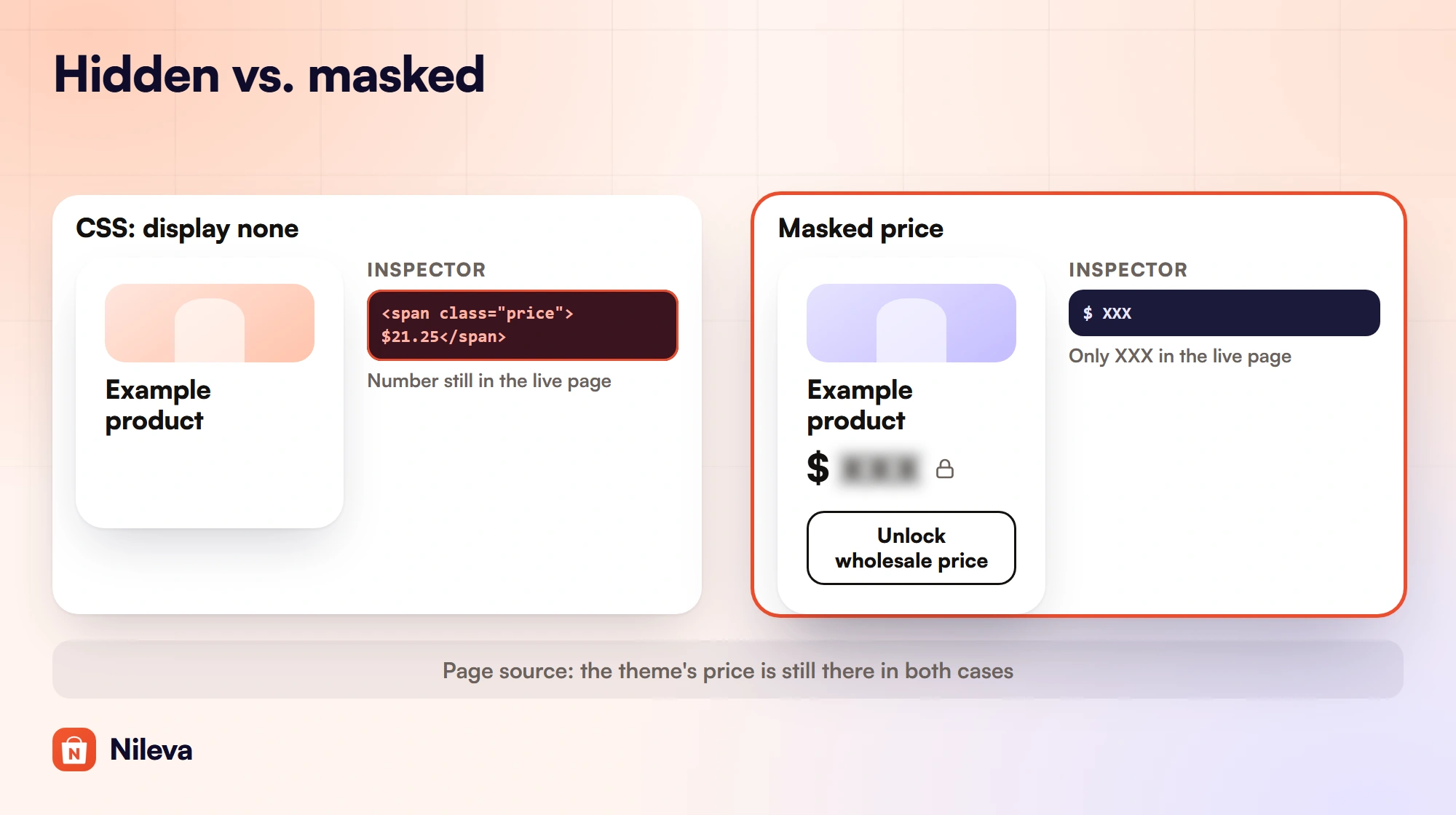
- Hiding a price with CSS changes what the screen shows; the number is still in the page, and anyone who opens the inspector can read it.
- The app replaces the number on screen with a blurred
XXXand an Unlock button, and never shows a gated shopper the B2B price. It is a sign-in gate, not a vault: the page source the theme sends still holds the theme's own price. - You choose between hiding the price only and hiding the price while also blocking add to cart and checkout.
Why wholesale stores hide prices until login
Most stores that sell to businesses have two price lists: the retail price the public sees and a trade price for resellers, salons, cafés or distributors. If the trade price sits on a public product page, three problems follow.
First, anyone can read it, including competitors and your own retail shoppers, who may ask why they pay more. Second, a buyer who can already see your best price has little reason to apply for an account, so you lose the moment when you learn who they are. Third, some wholesalers only want approved accounts to buy at all, and a public price with an open Add to cart button lets anyone order.
Those are the three reasons the app's documentation gives for gating prices: keep random visitors and competitors away from wholesale rates, push guests to sign in or register as a B2B customer, and optionally block purchases until a buyer is approved (Catalog Visibility overview). Which of the three matters to you decides which setup you need.
What Shopify offers without an app
Shopify has two store-level controls that keep strangers out. Neither of them works at the level of one price on one product, and that is the gap most merchants run into.
The store password page
When your online store is in private mode, Shopify shows a password page instead of your store. In Shopify's words, "all of your online store's pages are hidden from visitors and search engines" (Shopify Help Center: password page). Your prices are hidden, but so is everything else: product pages, collections and your brand story. That suits a private trade portal that lives on its own store, not a store that also sells to the public.
A store open only to B2B customers
Shopify B2B lets you run a blended store that sells to both businesses and consumers, or a dedicated B2B-only store, and you can restrict access to a dedicated store to B2B customers only (Shopify Help Center: company account requests). Again the whole store closes, not just the price. The same page notes that Shopify's company account request form can't be used on a store restricted this way, so new buyers need another route to apply.
What native B2B catalogs do and don't do
Shopify B2B catalogs let you include or exclude products and set percentage adjustments or fixed prices for the company locations in a B2B market (Shopify Help Center: catalogs). That controls what company buyers see and pay once they are signed in. It is not a switch that replaces the price with a sign-in prompt for everyone else. Catalogs are on Basic, Grow, Advanced and Plus, with 3 active catalog assignments below Plus (Shopify B2B features by plan).
Ways to hide prices on Shopify, compared
The honest test for any method is simple: can a curious shopper still find the number? Here is how the usual options answer it.
| Method | Hides prices from | Can a shopper still find the number? | Blocks buying | Effort |
|---|---|---|---|---|
| Store password page | Everyone, every page | No, but the whole store is closed | Yes, the whole store | Low |
| Store restricted to B2B customers only | Everyone who isn't a B2B customer, whole store | No, the store is closed to them | Yes | Low; needs native B2B and a dedicated store |
| CSS in the theme | Guests, visually | Yes, the number stays in the page's HTML | No | Medium; needs theme edits |
| Liquid edits in the theme | Guests | Depends on every template you edit | Only if you also edit the buttons | High; repeat after theme updates |
| App: Catalog Visibility | Guests, or everyone outside chosen customer groups, per product scope | Not on screen or in the inspector, where only XXX remains; yes in the page source, which still holds the theme's price | Optional, with a checkout block | Low; no theme code |
Why hiding a price with CSS isn't enough
A common forum answer is a line of CSS such as display: none on the price element for visitors who aren't logged in. It looks right on screen, but CSS only decides how an element is drawn. The price is still in the HTML your theme sends and in the live page, so "view source", the browser's inspector or any script that reads the page shows it in seconds.
An app that works through an app embed doesn't escape this completely either. It runs in the browser after the theme has sent the page, so it can replace the number in the live page but can't take it out of the page source. What it adds over CSS is a clear sign-in prompt, the option to block purchases, and a price element that holds no digits once it has run.
Liquid edits can do better, because the template can leave the price out for guests. The catch is coverage: a theme prints prices in many places (product page, cards, search, quick view, the cart), and every one of them must be edited, tested and edited again after each theme update. Miss one template and the price is public there.
How to set up Shopify hide price until login with the app
Nileva B2B Wholesale Pricing handles this with a feature called Catalog Visibility. It is one setting for the whole store, not a list of rules, under Pricing → Catalog Visibility. It needs the Advanced plan ($30 a month, with a 7-day free trial once per store) and the app embed switched on in your theme (Theme editor → App embeds). The app does not edit your theme files; it works through the app embed and app blocks.
A gated shopper sees the currency symbol next to three blurred X letters where the number would be, plus an Unlock wholesale price button that links to sign-in. The app replaces the digits in the price element itself rather than covering them, so removing the blur or editing CSS in the browser shows only XXX. Price ranges are masked too: both numbers of $10 – $20 are replaced (masked price and Unlock button). The B2B price itself is never shown to a gated shopper.
Step 1: Pick a mode: hide price, or hide price and block add to cart
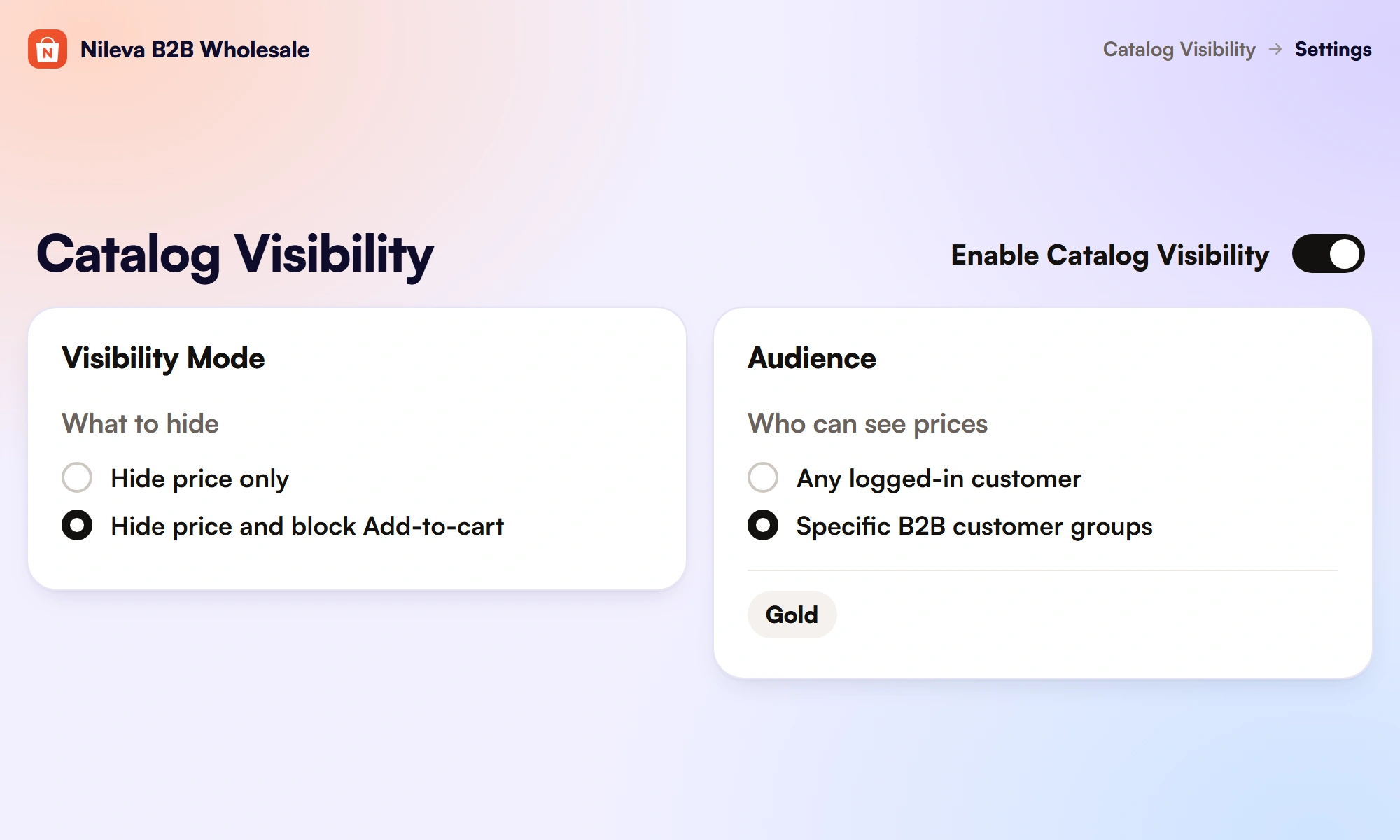
There are two modes (modes and audience):
- Hide price only. The price is masked, but the shopper can still add to cart and buy. Use it when you don't want prices public but are happy to take orders.
- Hide price and block Add-to-cart. The price is masked, the Add to cart button is hidden and the Unlock button takes its place. Use it when only approved buyers should be able to purchase at all.
In the second mode the app also adds a server-side backstop. Hiding a button is only a front-end layer, and a technical user could still push an item into the cart another way. So a Cart & Checkout Validation Function checks the cart, and if an ineligible shopper has a gated product in it, checkout is blocked with a message. Any "Min N pcs" minimum-quantity badge is also removed for gated shoppers, because a quantity floor next to a locked price would only confuse them.
Step 2: Pick who may see prices
The audience is the group that gets through the gate. Everyone else is gated.
- Any logged-in customer. Anyone signed in sees prices; only guests are gated. This is the literal "login to see price" setup.
- Specific B2B customer groups. Only customers whose tags match the groups you pick see prices. Everyone else is gated, including logged-in retail customers.
The second option uses the same group tags that drive your wholesale and volume pricing, so the people who get B2B prices are exactly the people who can see them. Example: with the audience set to the Gold group, a guest and a logged-in retail customer without the Gold tag both see the masked price, while a Gold customer sees the normal B2B price and can buy.
Step 3: Choose the products and the exceptions
Products outside the scope always show their normal price. The scope can be All products, Specific products, Specific collections, Product tags or Vendors, and an Exclude list keeps chosen products or collections visible to everyone (product scope).
The docs' example: apply to All products and exclude "Free sample". A guest then sees masked prices everywhere except the free sample, which keeps its price and its Add to cart button. The same pattern works for demo units or a public starter product that you want anyone to order.
Step 4: Change the Unlock button text
The button label isn't on the Catalog Visibility page. It lives in Settings → Storefront Text → Catalog Visibility, with your other storefront text. Leave it blank to use the default, "Unlock wholesale price", or type your own, and set a different label for each store language from the language tabs.
Step 5: Test as a guest and as a buyer
Open a gated product in a private browser window: you should see the masked price and the Unlock button. Sign in as a customer in the audience and reload: the real price returns. If a guest still sees a price, check four things in this order: the feature is enabled, the audience excludes guests, the product is in scope and not on the Exclude list, and the app embed is on.
What a guest sees and what an approved buyer sees
Catalog Visibility is checked first, for each product, before any pricing. A gated shopper sees no "Save X%" badge, no B2B price and no volume pricing table, even when a wholesale rule targets all customers (priority over pricing). The moment the shopper qualifies, normal B2B pricing comes back on its own.
| Shopper (Hide price and block Add-to-cart mode) | Price | Add to cart | Checkout |
|---|---|---|---|
| In the audience | Real B2B price | Allowed | Allowed |
| Outside the audience | Masked (currency symbol and blurred X letters) + Unlock wholesale price | Blocked | Blocked by the validation function |
Example: a product retails at $25.00 and your Gold group gets 15% off. The Gold buyer sees $25.00 struck through and $21.25 ($25.00 × 0.85) with a "Save 15%" badge. A guest sees the masked price and the Unlock button, and in this mode has no Add to cart button.
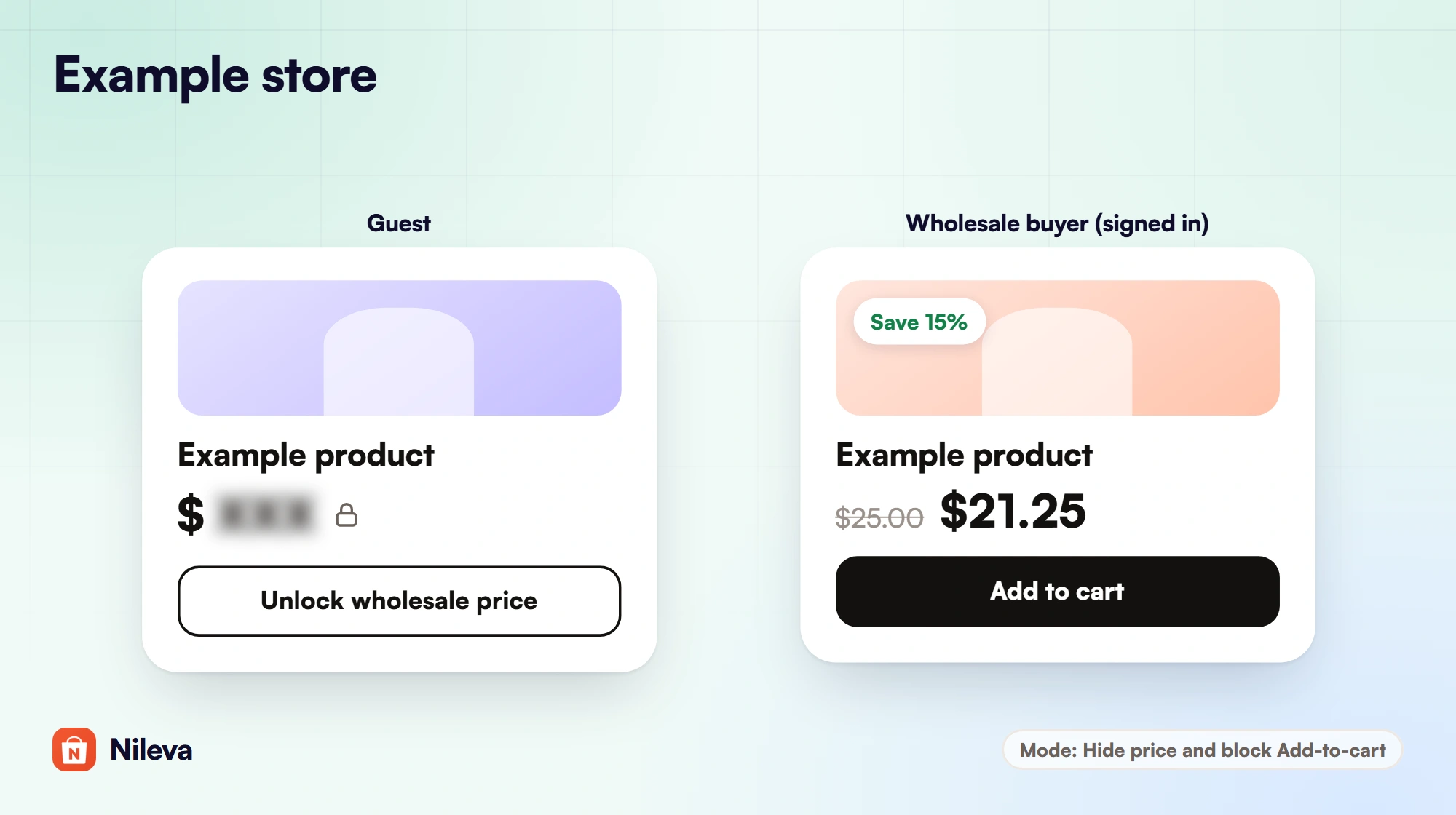
The gate covers product pages, collection and listing cards, search results, the volume pricing table, and the cart drawer and cart page. On cards, which have no Add to cart button to replace, the Unlock button sits under the masked price.
What price hiding does not cover
A gate is only as good as its edges, so here they are, from the app's own documentation.
- Quick-view popups under a narrow scope. If you scope the gate to specific products, collections, tags or vendors, a theme's quick-view popup may still show the theme's retail price, because it isn't a normal product card. The wholesale discount is never shown in a gated popup. Scoping to All products covers quick views fully.
- The checkout page. Shopify locks the checkout page, so the app doesn't change what it displays. In block mode the validation function is the backstop that stops ineligible buyers there. In Hide price only mode purchases are allowed, so a guest who checks out goes through Shopify's normal checkout.
- The page source. The mask works in the browser, after the theme has sent the page. The HTML the theme sends still contains the theme's own price, and the app's storefront data in the page lists your active rules with their discount types and values, so a technical visitor can work a trade price out. If your trade prices must stay confidential, keep them on a store behind the password page or restricted to B2B customers.
- Products themselves. The app hides prices, not products. A gated product is still listed and can be browsed; only its price is masked.
- A custom login popup. Shopify's current customer accounts sign in without a password: the shopper enters an email and gets a one-time code on pages Shopify hosts. A fully custom in-theme login form isn't possible, so the Unlock button sends the shopper to Shopify's sign-in and returns them to the same page. On themes that include Shopify's account component, sign-in opens as a panel without leaving the store.
- Places the docs don't list. The covered surfaces are the ones above. If your theme prints prices somewhere else, such as a custom section or a homepage block, check it while signed out before you rely on the gate there.
Pair hidden prices with an approval form
A masked price tells a guest what to do next, but "Unlock wholesale price" only helps if the right people can get an account. That is where an application form fits. The app's registration form, available on every plan including Free, takes a submission, marks it Pending and emails you. You approve, optionally picking a customer group so the group's tag is applied and the welcome email goes out, or you reject, and the rejection email carries a secure link to edit and resubmit.
Put together, the flow is: a guest sees the masked price, applies, you approve them into the Gold group, and the next time they sign in the Gold price is there, because the gate and the price use the same group tag. You can also turn on auto-approve with an optional group if you don't need to vet each applicant. We cover form fields, approval modes and company sign-ups in the guide to how to approve buyers with a registration form.
If you are still deciding how retail and trade should share one storefront, read wholesale and retail in one store. For the pricing side (tags, groups, tiers and how the price is charged at checkout) start with our wholesale pricing guide.
Frequently asked questions
Can Shopify hide prices from guests without an app?
Not per product. Shopify can password-protect the whole store or restrict a dedicated store to B2B customers only, which hides everything, not just prices. Hiding only the price takes theme edits or an app.
Can I hide prices only on some products?
Yes. Scope Catalog Visibility to specific products, collections, product tags or vendors, and put any item that should stay public on the Exclude list.
Can guests still buy if prices are hidden?
In "Hide price only" mode, yes. In "Hide price and block Add-to-cart" mode, no: the Add to cart button is hidden and checkout is blocked for ineligible buyers by a validation function.
Can I hide the products themselves?
The app hides prices, not products. Shopify's native B2B catalogs can include or exclude products for the company locations in a B2B market.
Can I use my own login popup?
No. Shopify's current customer accounts use passwordless sign-in on Shopify-hosted pages, so the Unlock button sends shoppers to Shopify's sign-in and brings them back to the page they were on.
Try it
Mask your wholesale prices from guests without touching theme code.


