 Nileva

Shopify customer-specific pricing means one buyer, or one group of buyers, sees its own agreed price on the product page and pays exactly that price at checkout, while everyone else keeps seeing retail. This guide covers what Shopify's native B2B catalogs can do on each plan, how to build price tiers with customer tags and groups instead, how to price a single product or variant, and which rule wins when a buyer matches more than one. Every price is worked out on the same $40 example product.
It is written for a store that sells to salons, stockists, resellers or distributors on different agreed terms, and wants those prices kept in one store.
Key takeaways
- Native B2B catalogs work on Basic, Grow and Advanced, but assigning a catalog directly to one company needs Shopify Plus.
- Customer tags and customer groups give every buyer a price tier on any Shopify plan, through an app rule.
- A rule can be a percent off, an amount off or a fixed price, for all products, a collection, a product tag, one product or one variant.
- When rules overlap, the most specific rule wins first, then the better price, and the priority number only breaks a tie.
- Always check the result while signed in as a tagged test customer before you tell buyers.
What customer-specific pricing means on Shopify
Two decisions sit behind every customer-specific price. The first is who: the store has to recognise the buyer, which in practice means the buyer is signed in and carries something that marks their tier. The second is how much: a percentage off retail, a fixed amount off, or a set price.
A customer tag is a short label stored on a Shopify customer, such as wholesale or b2b-gold. A tier is a set of buyers who share one price level. A good setup shows the tier's price wherever the buyer browses, not only at checkout, so nobody fills a cart at retail and hopes the discount appears later.
Shopify gives you two ways to do this: its own B2B catalogs, or rules that read customer tags. They suit different stores, and the native one has a plan limit worth knowing first.
Shopify's native route: B2B catalogs
Since April 2026 Shopify B2B runs on the Basic, Grow, Advanced and Plus plans (Shopify B2B plan features). Native pricing lives in catalogs. A catalog can include or exclude products, apply a percentage price adjustment and set fixed prices (Shopify Help: B2B catalogs).
The catch is where a catalog can be attached. On Basic, Grow and Advanced you assign catalogs to B2B markets, with up to 3 active catalog assignments across those markets, and the same catalog in two markets counts as two. Assigning a catalog directly to one company or company location is not available below Plus. So a true "this one customer gets this one price list" setup, done natively, is a Plus feature; below Plus, buyers who need different prices have to be grouped into B2B markets that share at most three catalog assignments.
Native B2B also works with companies: a buyer is a contact of a company with locations, not just a customer with a tag. That is a good model if you already run your trade accounts that way. For the full plan-by-plan picture, read our guide to native B2B without Plus, and for structuring buyers as businesses with several contacts, see company accounts.
When the native route is enough
If you have a handful of company buyers, they fit into three price levels or fewer, and you want Shopify's own net terms and quantity rules, catalogs may be all you need. Once you want a price per tag, more tiers than three, or prices for buyers you never set up as companies, a tag-based rule is the simpler tool.
Customer-specific pricing with tags and groups
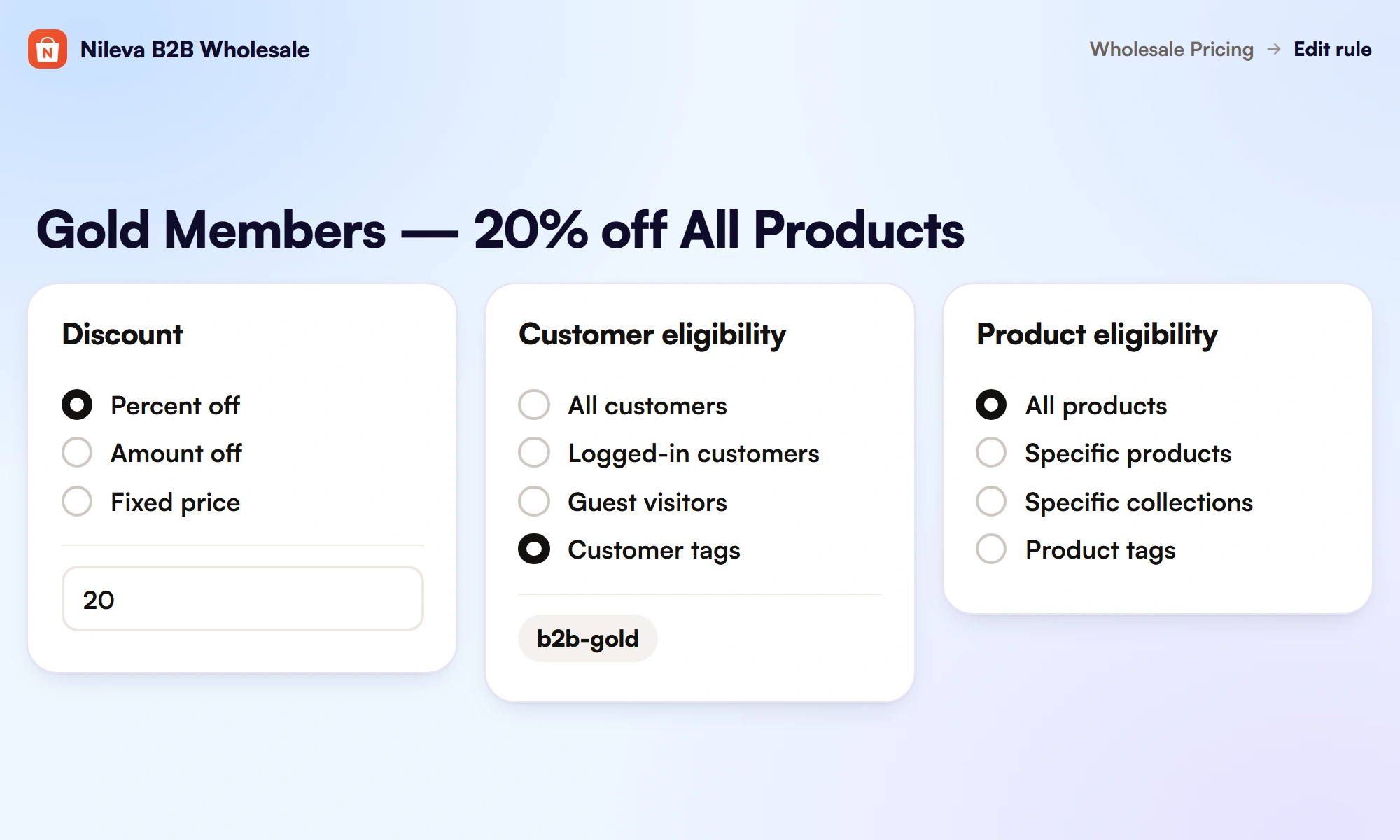
Below Plus, the other way to run Shopify customer-specific pricing is a wholesale pricing app that reads the buyer's tags and applies the matching rule. With B2B Wholesale Pricing, each rule has a discount type (Percent off, Amount off or Fixed price), a customer eligibility, a product eligibility, optional start and end dates, an Active or Inactive status and a priority. The buyer's price shows on product pages, collection and search cards, and the checkout applies it through Shopify's discount function, so there is no coupon code to share or forget.
Customer eligibility can be All customers, Logged-in customers, Guest visitors or Customer tags. Targeting by customer tag or group, and by collection or product tag, starts on the Essential plan; on the Free plan the single rule can target all customers, logged-in customers or guest visitors, on all products or specific products (plans and quotas).
Customer tags
Tags are the simplest way to mark a tier. In Shopify admin, open Customers, click the customer, and add the tag in the Tags field. You can also add or remove a tag on many customers at once with bulk editing, and Shopify treats tags as not case sensitive (Shopify Help: customer tags).
In the rule, set Customer eligibility → Customer tags and type the tag. You can enter several tags in one rule: a customer who has any of them qualifies. Use lowercase tags with no spaces, such as b2b-gold; tags with spaces can cause matching problems (target by customer tag or group).
Customer groups as price tiers
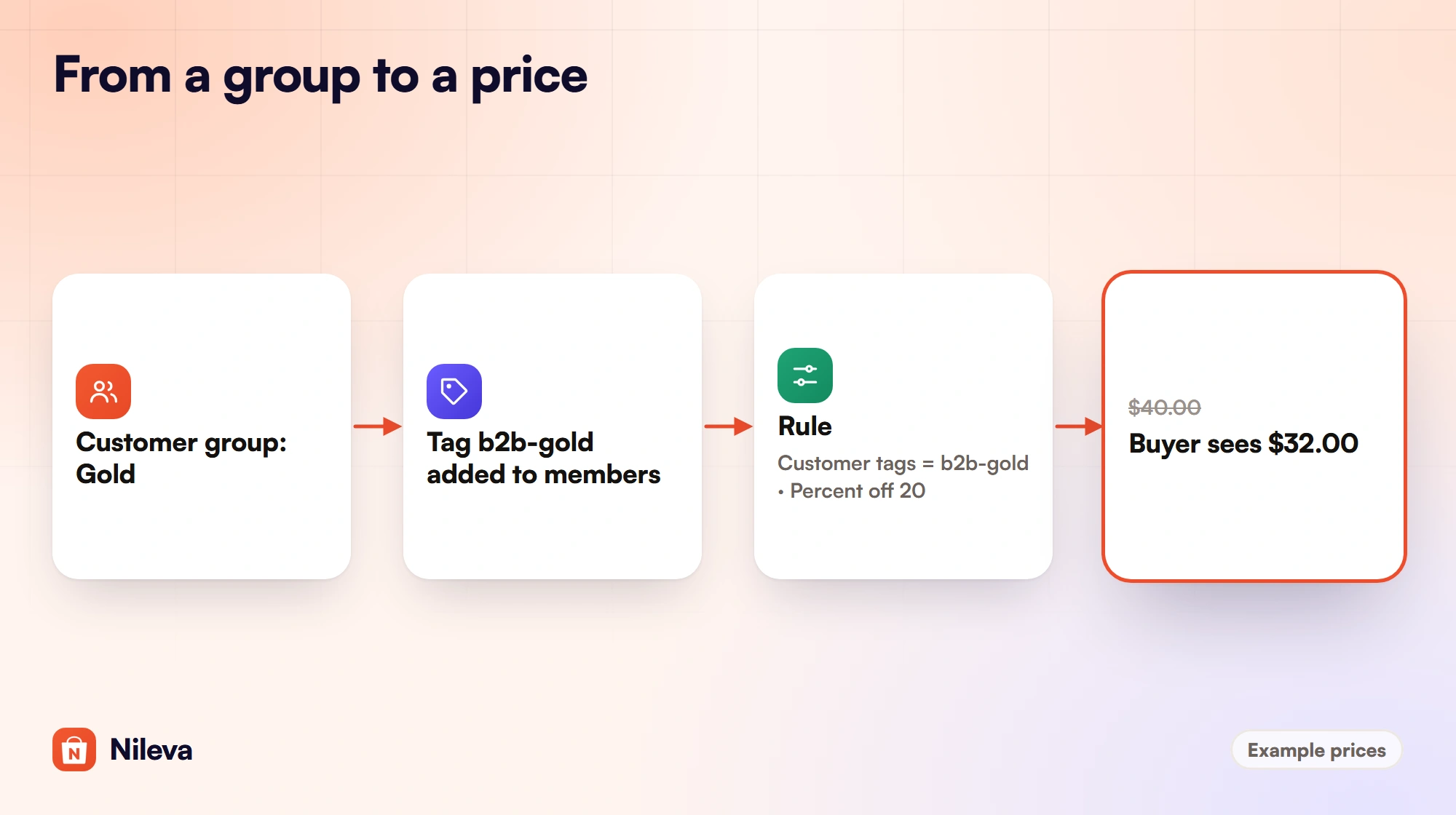
Typing tags by hand works for ten buyers and gets messy at a hundred. A Customer Group in the app is a named tier with its own tag. You create the group with a name and a tag, add customers to it, and the app applies the tag to each member's Shopify account. Remove a member and the tag is removed too, so that customer falls back to retail or to whatever other rule still matches them.
In your rule you then target the group's tag, exactly as above (use groups in pricing rules). Groups also connect to the rest of the setup: when you approve a buyer through a wholesale registration form, you can place them in a group on the approval screen, and when you assign a group to a company record in the app, every contact of that company gets the tag.
Excluding one customer from a rule
Sometimes a customer still has a tier tag but should no longer get the price, for example while you move them to a different tier. Turn on Exclude customers in the rule, pick the customer and save. The rule then skips them even though the tag matches.
A four-tier price list you can copy
The app's docs suggest a common starting structure of four tiers. Here it is on a $40 product, with each price worked out.
| Group | Tag | Discount | Buyer pays on a $40 product |
|---|---|---|---|
| Bronze | b2b-bronze | 5% off | $40 × 0.95 = $38.00 |
| Silver | b2b-silver | 10% off | $40 × 0.90 = $36.00 |
| Gold | b2b-gold | 20% off | $40 × 0.80 = $32.00 |
| Diamond | b2b-diamond | 30% off | $40 × 0.70 = $28.00 |
Build it as one rule per tier, each targeting one tag, and name the rules so you can read the list at a glance, for example "Gold Members — 20% off All Products". When two tiers share the same discount and differ only in other perks, one rule with both tags is enough.
Count your rules before you choose a plan. The Essential plan allows 3 wholesale pricing rules, so it holds three tiers at most; four tiers, as above, need the Advanced plan, which allows 20 rules and 20 customer groups. If you run each tier as a customer group, check the group allowance of your plan on the app's plans page as well. The names are only examples: use whatever matches how you already talk to your buyers.
Prices for one product or one variant
Not every agreed price covers the whole catalog. Product eligibility decides which products a rule touches: All products, Specific products, Specific collections or Product tags. A collection such as "Wholesale Catalog" is the easiest scope to maintain, because the rule keeps working as you add products to the collection. If you use product tags, give them a dedicated name such as wholesale-eligible so the rule doesn't pick up products from another department by accident.
The discount type changes the arithmetic. On the same $40 product:
- Percent off 20%: $40 × 0.80 = $32.00.
- Amount off $5 per item: $40 − $5 = $35.00.
- Fixed price $29.99: the buyer pays $29.99 whatever the retail price is.
When sizes or finishes carry different agreed prices, turn on Set pricing for individual variants in the rule. A variant price table appears where you set the discount type and value for each variant. Per-variant pricing is on the Advanced plan.
Which rule wins when a customer matches several
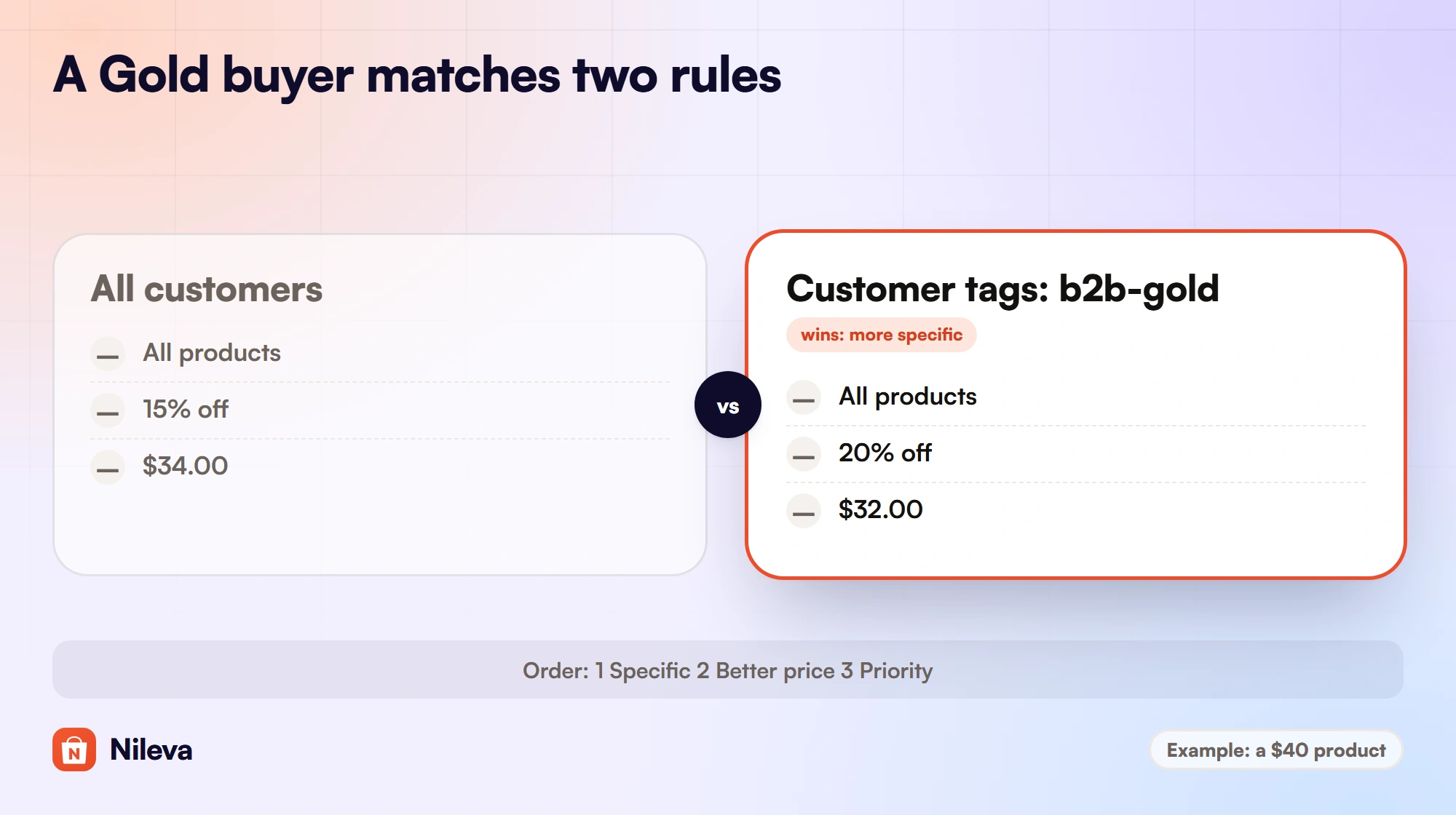
Overlap is normal: a Gold buyer is also a logged-in customer, and a store-wide sale may target all customers. When several rules match, the app decides in three steps:
- The most specific rule. For the customer, a rule for tags or groups is more specific than one for logged-in customers or guests, which is more specific than one for all customers. For the product, a rule for specific products is more specific than one for collections or product tags, which is more specific than one for all products. The app counts the two together.
- The better price, when rules are equally specific: the lower final price wins.
- The priority number, only as the final tie-break.
This order is not "the highest priority wins", and it surprises people. The app's changelog gives the classic case: a logged-in rule with 0% off silently outranks an all-customers rule with 15% off, because logged-in is the more specific audience.
Here is an example store with three rules: A, all customers on all products at 15% off; B, the tag b2b-gold on all products at 20% off; C, logged-in customers on one specific product, a starter kit, at 10% off. Every product costs $40.
| Shopper and product | Rules that match | Winner and why | Pays |
|---|---|---|---|
| Guest, any product | A | A, the only match | $34.00 |
| Gold buyer, any product but the kit | A, B | B: a tag is more specific than all customers | $32.00 |
| Gold buyer, the starter kit | A, B, C | C: a specific product outweighs the tag on all products | $36.00 |
| Logged-in buyer with no tier, the kit | A, C | C: more specific on both counts | $36.00 |
The third row is the trap: your Gold buyer pays more for the kit than for anything else. The fix is to make the kit rule name the tier too, or to give Gold its own rule for the kit. Read your rules this way whenever you add a narrow one.
Customer prices and volume tiers together
Tier prices often meet volume tiers. The app's discount strategy setting decides what happens. With Best price, the default, a Gold buyer at 20% off ($32.00) who also reaches a 15% quantity tier ($34.00) pays $32.00. With Stack, both apply: $40 × 0.80 × 0.85 = $27.20. Stacking can go deeper than you intended, so work out your highest tier against your highest quantity break before you choose it (discount strategy).
Prices by country or market
On the Advanced plan a rule can also have a Market eligibility: All markets, or Specific markets you have set up in Shopify. Market targeting combines with the customer and product conditions, so all of them must match. A buyer whose market matches no market-specific rule sees retail, or any other rule set to all markets (per-country pricing).
Mind the currency. You type Fixed price and Amount off values in your store's own currency, and the app converts them at Shopify's rate for buyers paying in another currency. A fixed price of 50 on a euro store is €50 for everyone; a buyer paying in Swedish kronor sees the kronor equivalent of €50, not 50 kronor. Percent off needs no conversion.
Check it before customers do
Shopify customer-specific pricing only works if the buyer is recognised, so test as a buyer, not as yourself in the admin:
- Make sure the B2B Prices app embed is on: Online Store → Themes → Customize → App embeds → Nileva B2B Wholesale. It changes no theme files.
- Create a test customer and give it the tier's tag, or add it to the group.
- Sign in on the storefront as that customer and open a product the rule covers.
- Check the product page and a collection page. In the default strikethrough mode a Gold price shows as
~$40.00~ $32.00with a Save badge; Replace mode shows only$32.00. - Add it to the cart and go to checkout: the same price should apply there, with no code.
If the price doesn't change, check in this order: the embed is on, the rule is Active and inside its dates, the customer really has the tag the rule names, and the product is inside the rule's scope (prices not showing). Then check the table above for a more specific rule that wins. For the wider picture of methods, see the full guide to Shopify wholesale pricing.
Frequently asked questions
Can Shopify show different prices to different customers?
Yes. Natively, B2B catalogs price products for companies in up to 3 B2B market assignments below Plus, and direct catalogs per company need Shopify Plus. With an app, you can price by customer tag or group on any Shopify plan; in B2B Wholesale Pricing that targeting starts on the Essential plan.
How do I give one customer a special price?
Give that customer its own tag and target a rule at it, or put it in a customer group with its own rule. To remove someone from a broader rule, use Exclude customers in that rule.
Can a customer be in more than one price tier?
A customer can match several rules at once. The app picks the most specific rule first, then the better price, and uses the priority number only to break a tie.
Can I set prices per variant?
Yes. Turn on per-variant pricing in the rule and set a discount type and value for each variant. It is part of the Advanced plan.
Do customer-specific prices show before checkout?
Yes. With the B2B Prices app embed on, the buyer's price shows on product pages, the sticky add-to-cart bar, and collection and search cards, and the checkout charges the same price.
Try it
Give each wholesale tier its own price on the plan you already have, with tag and group pricing from the Essential plan.


