 Nileva

A Shopify quick order form puts many products on one page so a wholesale buyer can type or paste SKUs, set quantities and send the whole order to the cart at once, instead of opening forty product pages. This guide covers what Shopify includes natively, how an app form handles pasted spreadsheets and case packs, and how to set one up in four steps.
Key takeaways
- Shopify B2B includes a quick order list on Basic, Grow, Advanced and Plus; it is a section on the product page.
- The app's form works across products: buyers search by SKU or name, or paste SKU and quantity columns straight from a spreadsheet.
- Minimum, maximum and step rules, with industry presets, keep every row in whole case packs.
- Each customer group can get its own form, and guests never see one.
Why wholesale buyers want a quick order form
A retail shopper browses. A trade buyer usually already knows what they need: a reorder list in a spreadsheet, a set of product codes from your price list, or the same range they stock every month. Making that buyer find each product, pick a variant and click Add to cart one by one is slow, and it is where mistakes creep in.
The app's documentation names four situations where a bulk order form earns its place (Quick Order overview):
- Buyers who order by SKU. They type or paste the codes they already have, with no browsing.
- Large orders from a spreadsheet. They paste the SKU and quantity columns and the rows fill in.
- A fixed range per account. A pre-filled form lists every product the buyer can order, so they only enter quantities, like a paper order pad.
- Case packs and minimums. Quantity rules keep each row at a minimum, a maximum and a pack size.
If none of these describe your buyers, a normal product page may be all you need. If two or more do, read on.
Shopify's native quick order list
Shopify's B2B feature table lists a "Quick order list" on all four B2B plans: Basic, Grow, Advanced and Plus (Shopify B2B features by plan). Shopify's help page on adding it describes a Quick order list section that you display on your product pages; it is supported on free Shopify themes from version 11.0.0, by updating the theme or by adding code yourself (Shopify Help Center: quick order list).
That makes it a good fit for one product with many variants on its own page. Shopify's help page doesn't describe SKU entry or spreadsheet import, so check how it behaves on your theme before you promise either to buyers. When buyers order across many products at once, a separate order form page is the tool for the job.
How the Shopify quick order form works
The app's Quick Order feature is a bulk order form that lives on a page of your store. You build forms in the app under Orders → Quick Order, then add the Quick Order block to a page. It is part of Nileva B2B Wholesale Pricing from the Essential plan.
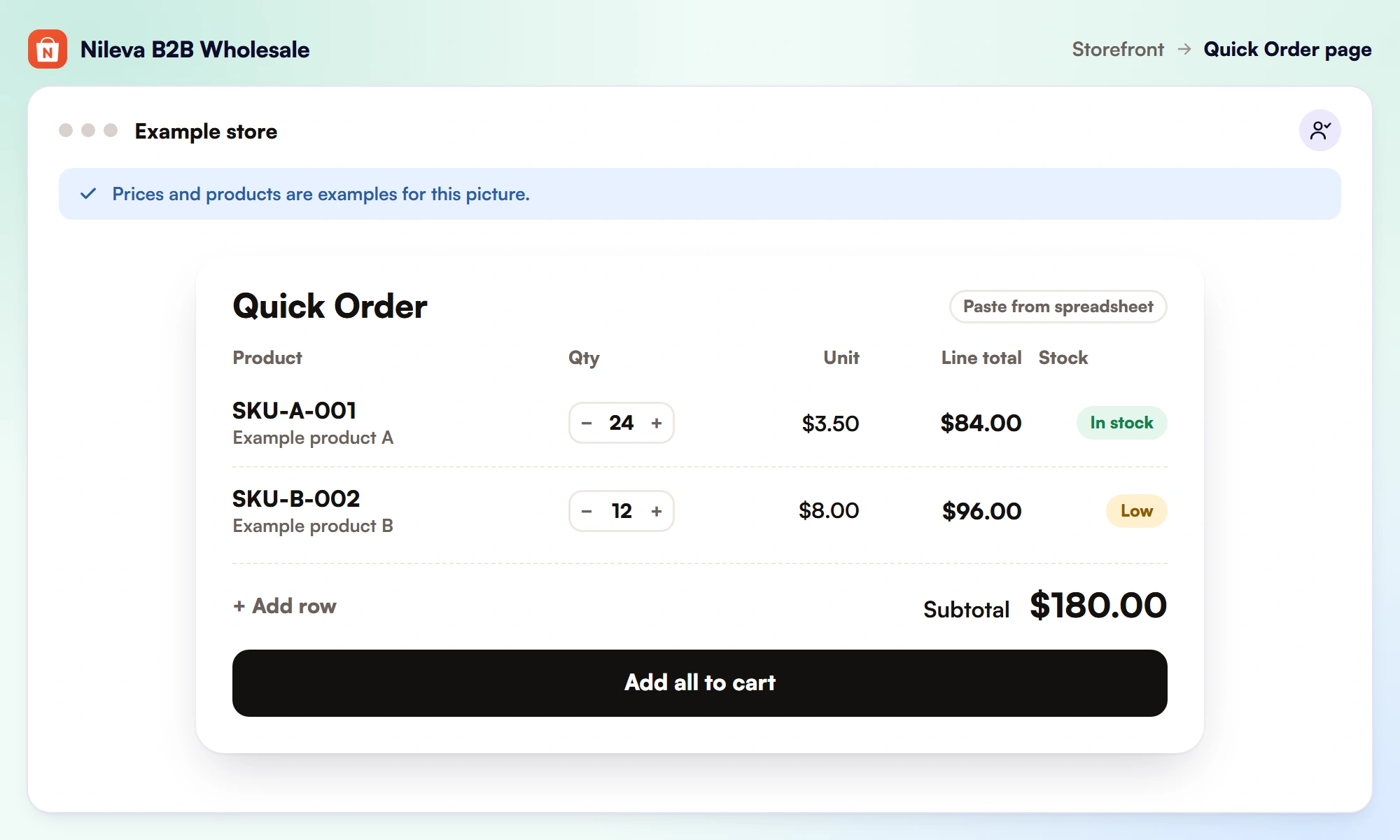
The buyer sees your heading and description, a Paste from spreadsheet button and a table with one row per product. The columns are Product, Qty, Unit, Line total and Stock, where Stock reads In stock, Low (5 or fewer) or Out of stock. Below the table are + Add row, a running Subtotal and the Add all to cart button.
Example: a buyer adds 24 units of SKU-A-001 at $3.50 and 12 units of SKU-B-002 at $8.00. The line totals are 24 × $3.50 = $84.00 and 12 × $8.00 = $96.00, and the subtotal shows $180.00 before they click.
Search, paste or pre-fill
Buyers can mix three ways of adding products. They can search by typing a SKU or product name in a row and picking a result; a variant already in another row isn't offered again. They can paste a list through Paste from spreadsheet and then click Add to list. Or, if you turn on pre-fill, the eligible products are already listed and the buyer only sets quantities.
Only products published to your Online Store sales channel appear in the form. When the buyer clicks Add all to cart, every row with a quantity above 0 goes into the cart in one step and the buyer lands on the cart page.
Quantity rules, presets and quick-pick chips
Turn on Enforce MOQ on storefront (min, max, step) and each row gets a minimum quantity, an optional maximum and a step, which is your pack size. With a minimum of 12 and a step of 12, a buyer can order 12, 24, 36 and so on. With a minimum of 10 and a step of 12 the allowed quantities become 10, 22, 34, which is why the docs advise making the minimum a multiple of the step when you sell in packs (Create a Quick Order form).
A quantity that doesn't fit is corrected to the nearest allowed one when the buyer leaves the box. Quick-pick suggestions show as chips above the table; clicking one sets that quantity on the row whose quantity box the buyer clicked last, or on every orderable row if they haven't clicked into one yet. One click on an industry preset fills in a starting point:
| Preset | Minimum | Step | Quick-pick chips |
|---|---|---|---|
| Beverage | 12 | 12 | 12, 24, 48, 96 |
| Apparel | 6 | 6 | 6, 12, 24, 48 |
| Cosmetics | 12 | 6 | 12, 24, 36, 60 |
| Food | 24 | 12 | 24, 48, 96, 144 |
| Books / Stationery | 10 | 10 | 10, 25, 50, 100 |
| Industrial parts | 50 | 50 | 50, 100, 250, 500 |
There are also Electronics and Furniture presets, both starting at a minimum and step of 1. You can change any value after applying a preset. If a wholesale pricing rule gives a buyer a higher minimum order quantity for a product, the row uses the larger of the two. For minimums that apply to the whole order flow rather than a form row, see our guide to minimum order quantities.
Checks before the cart
The form catches the usual problems before anything reaches the cart. Out-of-stock rows can't be ordered, and rows left at 0 are skipped. If Shopify refuses some items, for example because they sold out or aren't available in the buyer's region, those rows are marked Out of stock, the buyer is told how many were skipped, and the rest go to the cart.
Prices in the form are a preview. The cart and checkout calculate the final price, so volume tiers show up there, not in the form. If you reward bigger orders with quantity breaks, tell buyers their tier discount appears in the cart.
The paste format, line by line
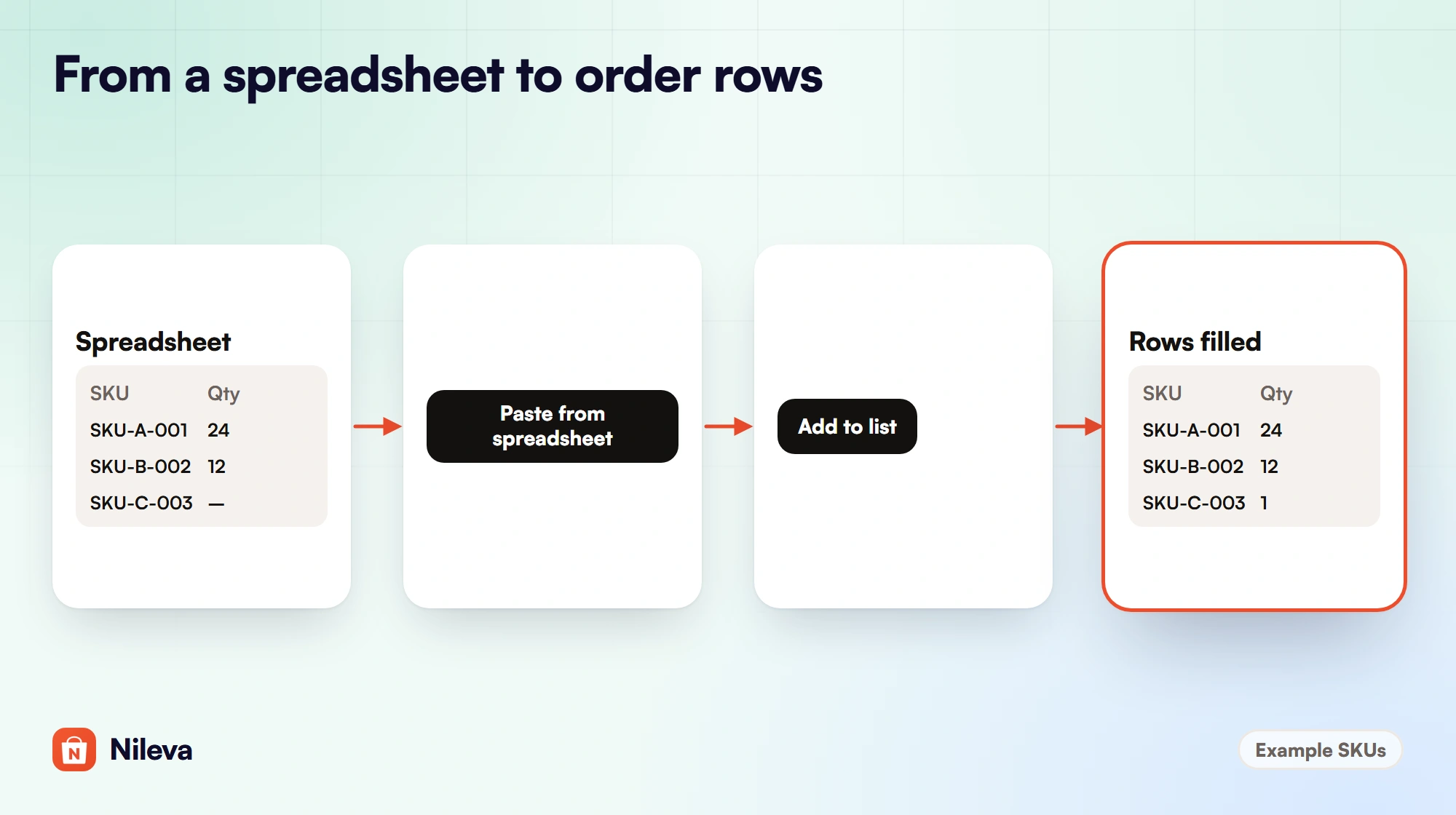
To order by SKU from a spreadsheet, the buyer copies two columns, SKU and quantity, and pastes them. Each line becomes one row: the SKU, then a tab or a comma, then the quantity. The quantity is optional, and the most one line can ask for is 9,999.
| Pasted line | What the form does |
|---|---|
SKU-A-001<tab>24 | Row for SKU-A-001, quantity 24 |
SKU-B-002, 12 | Row for SKU-B-002, quantity 12 |
SKU-C-003 | Row for SKU-C-003, quantity 1 |
sku-a-001, 24 | Same as the first line: SKU matching ignores capitals |
| Text with no exact SKU match | Row takes the first search result for that text, so check it |
| Text that finds nothing | Row stays in the table, highlighted and marked "— not found" |
| A quantity outside your rules | Adjusted to the nearest allowed quantity |
The row that falls back to the first search result is the one to warn buyers about: a partial code can match a different product. Ask them to glance over the rows before they click Add all to cart.
One form per customer group
Each form has its own eligibility: Any logged-in customer, Customers with any wholesale tier tag or a Specific customer group. Each form also chooses its products (all products, specific products, specific collections or products with tags), its quantity rules and its look. So your Gold accounts can have a pre-filled order pad of their range while other trade buyers get an open search form.
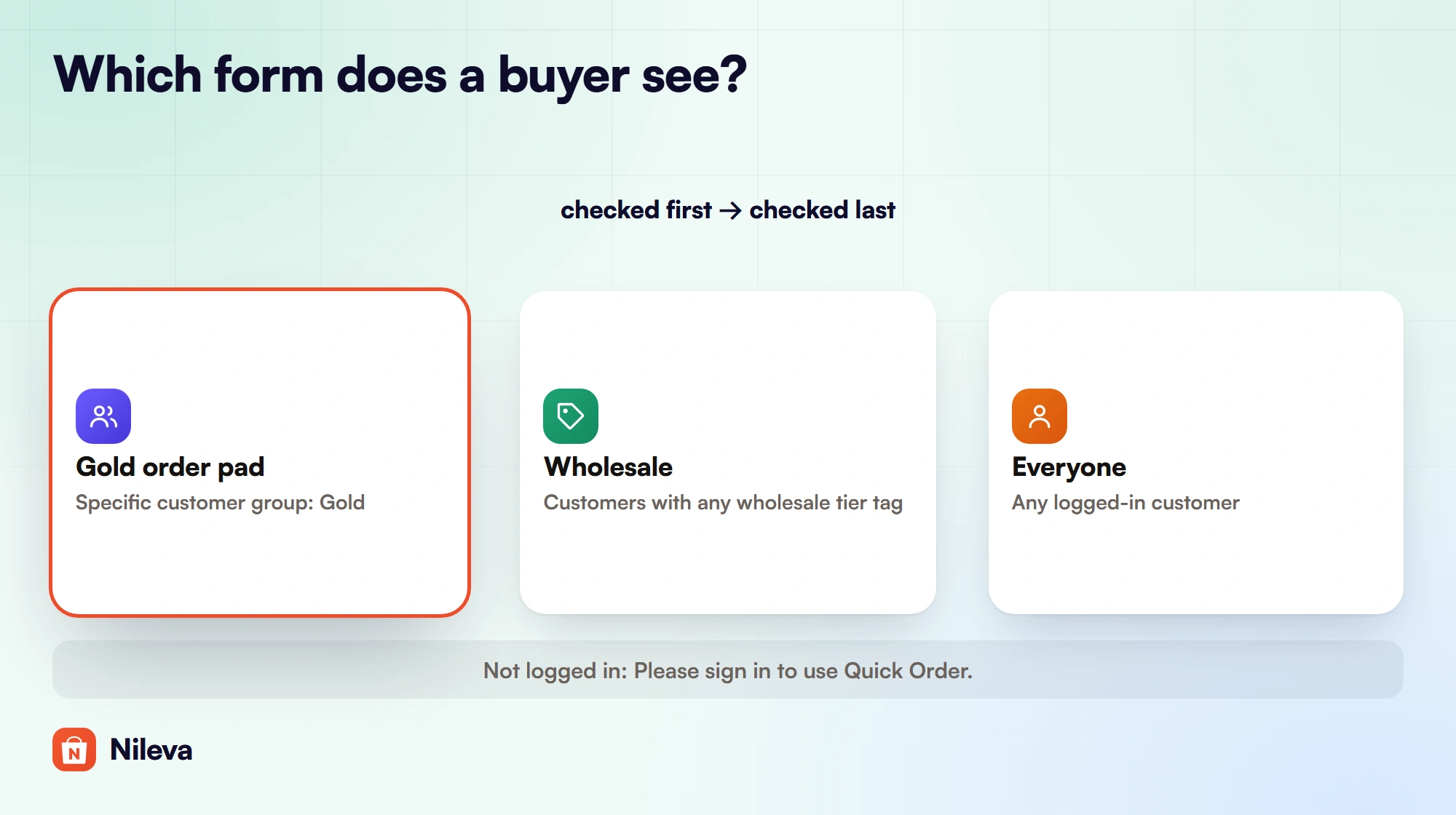
Buyers must be logged in. Even a form set to Any logged-in customer is closed to guests, who see "Please sign in to use Quick Order." with a Log in link. When more than one form matches, each buyer sees exactly one, the most specific: a group form first, then the any-tag form, then the any-logged-in form. At the same level, the most recently updated form wins. The docs' example, with three active forms:
| Buyer | Form they see |
|---|---|
| Member of the Gold group | Gold order pad |
| Has a customer tag, but isn't in Gold | Wholesale |
| Logged in, no tags at all | Everyone |
| Not logged in | "Please sign in to use Quick Order." |
Watch the wording of the middle option. "Any wholesale tier tag" matches a customer with any tag at all, not only your group tags. If retail customers carry tags from you, another app or a marketing tool, they match it too. To keep a form to B2B buyers only, use Specific customer group.
Many sizes and colours of one product: the Variant Drawer
Quick Order is built for many different products. When the order is many variants of one product, such as a T-shirt in six sizes and four colours, the app's Variant Drawer fits better. It opens a slide-out drawer on the product page listing every variant with a quantity stepper, then adds them all to the cart at once (Variant Drawer overview).
It enforces a minimum per variant, a minimum per product total and a maximum per variant. With a minimum of 2 per variant and 12 in total, 3 Red/M, 3 Red/L and 6 Blue/S is a valid order of 12, while 1 Red/M is not. The drawer can open on a swatch click, from a button next to Add to cart, in place of Add to cart, or from a floating button. Variant Drawer is on the Advanced plan.
Set up a quick order form in four steps
- Create the form. In the app go to Orders → Quick Order → Create form. A new form starts Active, open to Customers with any wholesale tier tag and covering All products, with quantity rules and pre-fill off.
- Choose eligibility and products. Pick who can use it and which products they can search. Note that Specific products doesn't limit search; to restrict it, use Specific collections or Products with tags. Turn on quantity rules or a preset if you sell in packs, then Save.
- Add the Quick Order block to a page. Create a page in Shopify (Online Store → Pages, for example "Quick Order"), then use Add block in theme editor from the app. The block belongs to the page template, so if other pages share that template, give the order page its own template first (Add Quick Order to your store).
- Test it logged in. Sign in as a customer who matches the form, search a SKU, paste two or three lines, set quantities and click Add all to cart. Then log out and reload: you should see the sign-in message.
On plans: Quick Order needs Essential ($10 a month) with 1 form; Advanced ($30) includes 3 forms and Platinum ($80) unlimited, each paid plan with a 7-day free trial once per store. Inactive forms count toward the limit. On the Free plan the block shows an upgrade notice to every visitor, so remove it from your navigation if you move down a plan. For how the prices on these rows are set in the first place, see our wholesale pricing guide.
Frequently asked questions
Does Shopify have a quick order form?
Shopify B2B includes a quick order list on Basic, Grow, Advanced and Plus, added as a section on product pages. An app form adds a separate order page with SKU search, spreadsheet paste and a form per customer group.
Can buyers paste SKUs from Excel?
Yes. They copy the SKU and quantity columns and paste them: one line per product, the SKU, a tab or comma, then the quantity. A line with no quantity gets 1.
Can I enforce case packs in the form?
Yes. Each row can have a minimum, maximum and step, with presets for beverage, apparel, cosmetics, food, industrial parts and more. A quantity that doesn't fit is corrected to the nearest allowed one.
Do guests see the quick order form?
No. Buyers must be logged in; guests see "Please sign in to use Quick Order." with a Log in link.
Do volume discounts apply to quick orders?
Yes, in the cart and at checkout. The prices in the form are a preview, and the final price, including volume tiers, is calculated in the cart.
Try it
Give wholesale buyers a quick order form they can fill from a spreadsheet.


