 Nileva

A trade buyer wants to order now and pay later, and you want to check the order before anyone is charged. Shopify draft orders for B2B are built for that moment: the order waits as a draft, you review it, and the buyer gets an invoice. This guide covers what Shopify does natively, how buyers with a customer tag can submit their cart for approval through an app, and how to put your wholesale prices on a draft you create yourself.
Key takeaways
- A draft order lets you build an order for a customer and email an invoice with a checkout link. Shopify deletes drafts created from April 1, 2025 after one year of inactivity.
- Shopify B2B includes checkout to draft and draft order to invoice on Basic, Grow, Advanced and Plus; deposit requirements on draft orders are Plus only.
- With B2B Wholesale Pricing, eligible buyers see "Submit Order for Approval" instead of Checkout, and you confirm each request, add shipping and send one Shopify invoice.
- "Apply B2B pricing" puts your wholesale and volume rules on a draft you created in Shopify admin, but it prices each line on its own and never discounts custom items.
What a Shopify draft order is
A draft order is an order you create on behalf of a customer, typically for a phone, email or in-person sale, or for a negotiated wholesale price. You can send an invoice with a secure checkout link so the customer pays online, or mark the order as paid when the money has already arrived (Shopify Help Center: create orders).
When you create one under Orders → Drafts, the Payment section lets you choose Payment due later and pick a term: due on receipt, due on fulfillment, net 7, 15, 30, 45, 60 or 90 days, or a fixed date. By default the invoice contains a link to a checkout, and once you accept payment an order is created on the Orders page (create a draft order).
Two rules on that page catch B2B sellers out:
- Old drafts disappear. Draft orders created on or after April 1, 2025 are deleted automatically after one year of inactivity; any edit resets the timer. A draft is not an archive.
- Foreign-currency drafts. If the draft's local currency differs from your store currency, you can't send an invoice once payment terms are set; you can only charge a card or mark the order as paid.
Native draft-order features for B2B
Shopify B2B adds two draft-order tools, and its plan table lists both, checkout to draft and draft order to invoice, on Basic, Grow, Advanced and Plus (B2B features by plan).
Checkout to draft for company locations
On a company location you can turn on Submit all orders as drafts for review (Customers → Companies → a location → Checkout → Order submission). Buyers at that location go through checkout, see a banner saying payment is due when the order is confirmed, and pay nothing at checkout (B2B checkout settings).
The submitted orders land on your Drafts page with their prices locked by default, and they aren't complete until you click Create order or the customer pays an invoice you sent (creating B2B orders using draft orders).
Payment terms and deposits
Payment terms let you set the date payment is due. Net terms count from the day the order is placed, and a fixed date can only be set on an individual draft order (Shopify payment terms). Deposit requirements on draft orders, and partial payments, are Plus only.
The catch is that checkout to draft belongs to Shopify's company accounts, and many wholesale stores never set those up: their trade buyers are ordinary customers with a tag.
Shopify draft orders for B2B buyers with a tag: submit for approval
The Draft Orders feature of B2B Wholesale Pricing gives tagged buyers an "order on account" button in the normal cart. The buyer submits the whole cart without paying; you review, confirm, and a Shopify draft order with one invoice goes out (Draft Orders overview). The docs state it runs on Basic, Grow, Advanced and Plus. Which app plan includes it is shown with the plans on the app page.
Turn it on and choose who can submit
Open the app, go to Orders → Draft Orders → Settings and switch on Enable Submit Order for Approval. The theme's app embed Nileva B2B Wholesale must also be on (Theme editor → App embeds). Then pick who may submit:
| Mode | Who can submit | When to choose |
|---|---|---|
| Approved B2B customers only (the default) | Customers whose Shopify tag matches one of your Customer Group tags | Keeps retail buyers on normal checkout |
| Any logged-in customer | Any signed-in customer | You don't tag B2B customers yet |
| Everyone | Anyone, including guests | High-trust or invite-only stores |
The check runs on the storefront to swap the button, and again on the app's server at submit, so editing the page doesn't get around it. The same settings page holds the button label (default "Submit Order for Approval") and the shop default payment term.
What the buyer sees and receives
For an eligible buyer, the cart page and cart drawer show Submit Order for Approval where Checkout was, and express buttons such as Shop Pay are hidden. Everyone else keeps the normal Checkout button.
On click, every line, quantity and product option is captured as a pending request, no payment is taken, and the cart is emptied. A logged-in buyer gets an email listing each line, marked as awaiting your approval, saying no payment has been taken and that the final invoice will include shipping. Guests don't get this email, so the store's email can't be sent to any address someone types in.
Review, add shipping and confirm
Requests appear in the app under Orders → Draft Orders with a status: Pending (waiting for you), Invoiced (draft order created and invoice sent), Paid (payment received, tracked in Shopify Orders) or Cancelled. A request shows Confirmed for a few seconds while its draft order is being created.
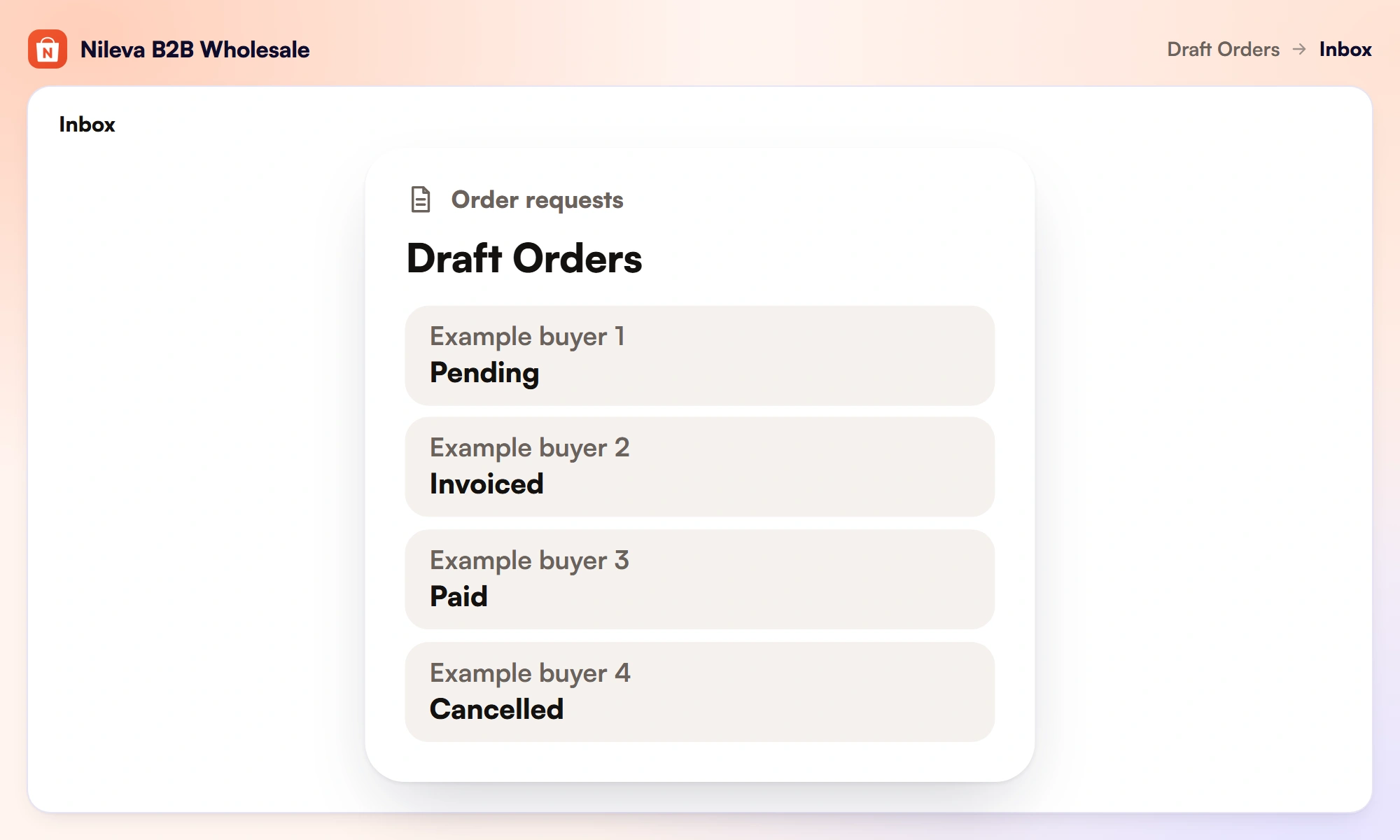
Open a request to see the items, the customer, the subtotal and the payment term. Under Payment & confirmation you can fill in Shipping cost and Shipping label. Leave the cost blank for no shipping line, or enter 0 for free shipping (confirm and send the payment link).
Example: a request for 40 cases at $46.00 is $1,840.00. You enter 25 and "UPS Ground", the page shows Shipping (UPS Ground) $25.00 and a total of $1,840.00 + $25.00 = $1,865.00, and the invoice the buyer receives shows the same $1,865.00.
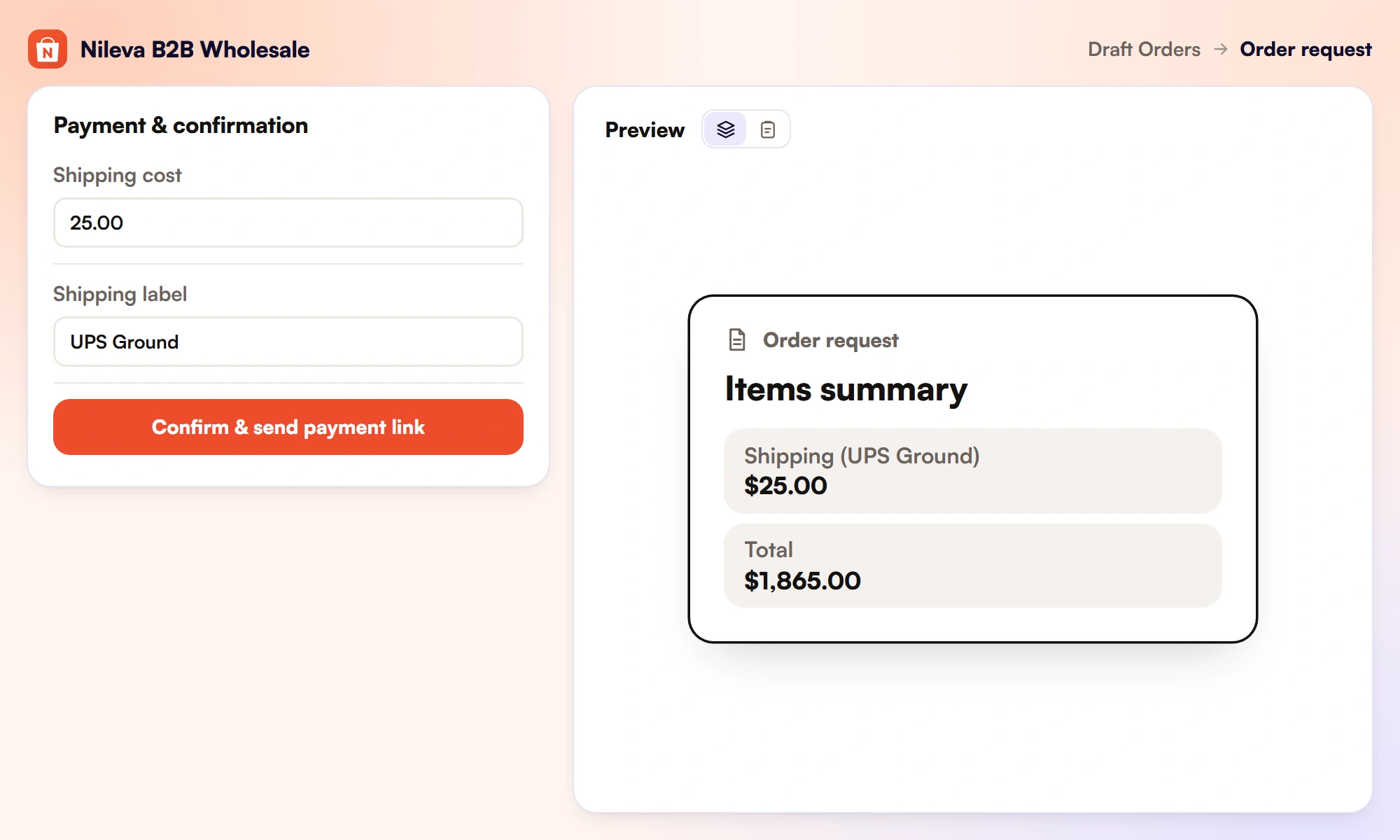
Click Confirm & send payment link. The app creates the Shopify draft order and Shopify emails the buyer one invoice: on Due on receipt it carries a pay-now checkout link; on a net term it shows the due date, and you mark the order paid when the money arrives. The invoice wording is Shopify's own, edited under Settings → Notifications → Draft order invoice.
Three limits to know before you rely on it:
- You confirm the order as submitted; the request page doesn't let you edit lines first.
- If Shopify refuses the draft, for example because a product was deleted, the request stays Pending and you can confirm again after fixing it.
- Cancel request declines it, and removes the Shopify draft if one was already created.
What lands in Shopify admin
The draft order the app creates is an ordinary Shopify draft in your store currency, so the foreign-currency rule above doesn't block its invoice. Its note starts with "From order request" and the request number, and an "Order request #" attribute traces it back to the request. Net terms are set as Shopify's own payment terms on the draft; if Shopify won't accept them, the app still creates the draft and records the term in its note.
How the payment term is chosen
Each request gets a term from a fixed order, first match wins: the term you pick on the order before confirming, then the buyer's Customer Group default (its B2B payment term), then the Shop default payment term, then Due on receipt. The term is worked out when the buyer submits, so the pending request already shows it (Draft Orders payment terms).
The terms are Shopify's built-in ones, Due on receipt or a net term such as Net 15, 30, 45, 60 or 90, and they don't need Shopify Plus. Our guide to net 30 payment terms walks through the group and shop defaults with an example.
Auto-create on submit: when to use it
By default every request waits in Pending. Turn on Auto-create draft order & send invoice on submit and the draft order is created and Shopify emails the invoice the moment the buyer submits; the request is already Invoiced and the buyer sees a Pay now button (auto-create on submit).
It suits trusted repeat buyers and high order volume. Keep it off if you check stock, credit or pricing first, or charge shipping per order: with auto-create there is no step at which to add shipping, so the invoice goes out without it. Only logged-in buyers are auto-confirmed; a guest's request always waits for you. If auto-create fails, the request stays Pending.
Apply wholesale prices to drafts you create
Phone and email orders don't come through the cart, so you build them in Shopify admin. Apply B2B pricing adds your wholesale and volume rules to such a draft for the customer on it, so you don't retype prices (apply B2B pricing to a draft order). It is not on every app plan; which plans include it is listed with the plans on the app page.
The steps
- Create the draft under Orders → Drafts, assign the customer, and add the products and quantities. Without a customer the action stops with "Assign a customer to the draft first."
- Click More actions → Apply B2B pricing.
- Check Apply to market. It starts on your primary market; pick the market this order belongs to.
- Click Preview. This is a dry run: one row per rule that would apply, such as
Wholesale: Gold tier · 20% off, or "No eligible discount found". - Click Apply, read the confirmation (for example "Applied to 3 line(s)." and "Terms: Net 30"), then Close.
Rules targeting all customers, logged-in customers, or the customer's tags or groups count on a draft; rules for guest visitors don't. Discounted lines keep their regular price and show the saving as a line discount titled "Wholesale Pricing" plus the rule name. The draft gets the nileva-b2b and nileva-priced tags, and the payment term comes from the customer's group, otherwise the shop default. On a draft in another currency, a net term set this way stops you sending the invoice.
A worked example
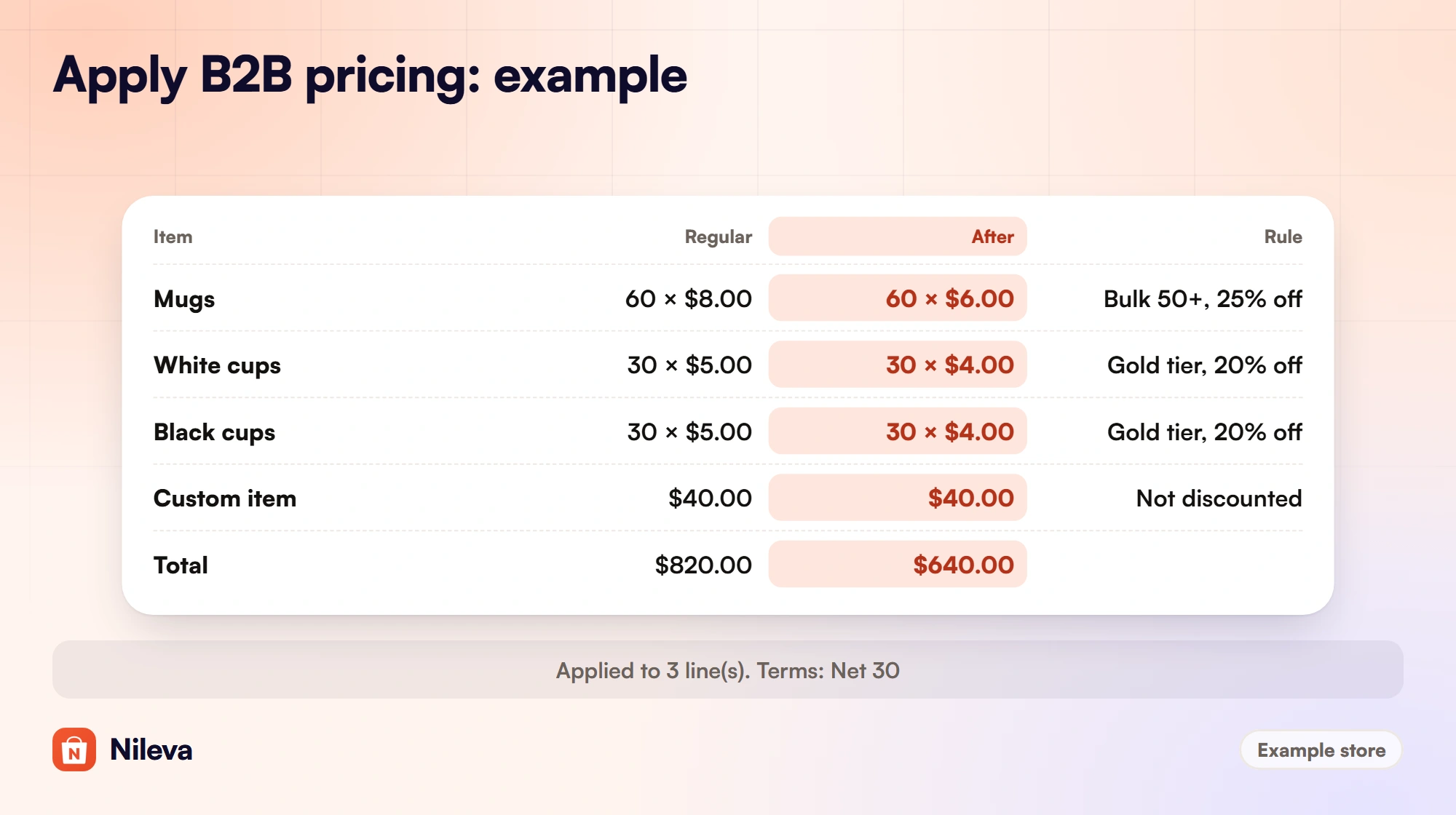
Example: a café chain in your Gold group phones in an order. Gold has a wholesale rule of 20% off, a volume rule "Bulk 50+" gives 25% off from 50 units, the group's B2B payment term is Net 30, and your discount combination is Best price for customer, so each line gets the cheaper of the two.
| Line | Quantity × regular price | Matching rules | Price after Apply | Line total |
|---|---|---|---|---|
| Ceramic mug | 60 × $8.00 = $480.00 | Gold 20% ($6.40) or Bulk 50+ 25% ($6.00) | $6.00 | $360.00 |
| Espresso cup, white | 30 × $5.00 = $150.00 | Gold 20% only; 30 is below 50 | $4.00 | $120.00 |
| Espresso cup, black | 30 × $5.00 = $150.00 | Gold 20% only; 30 is below 50 | $4.00 | $120.00 |
| Custom item: logo setup | 1 × $40.00 | None; custom items are never discounted | $40.00 | $40.00 |
| Total | $820.00 | $640.00 |
The saving is $820.00 − $640.00 = $180.00: $120.00 on the mugs and $30.00 on each cup line. The confirmation reads "Applied to 3 line(s)." because the custom item isn't discounted.
Look at the cups, two variants of one product. On a draft, volume tiers count each line on its own, even when the rule is set to Mix variants or Mix products. If Bulk 50+ counts Mix variants, the same 60 cups bought through normal checkout would reach the tier at $3.75 each, $225.00 instead of $240.00. On the draft they don't, so this order costs the buyer $15.00 more unless you adjust the lines. An order request is priced line by line in the same way. More on tier counting in our guide to quantity breaks.
Four traps on drafts
- Manual edits are overwritten. Apply replaces any price or discount you set on a line by hand, so apply first and edit afterwards. Running Apply again is safe: discounts are always worked out from the regular price.
- The note can be replaced. If Shopify won't accept payment terms on the draft, the term is written into the note (for example
Payment terms: Net 30), replacing any note already there. - Duplicates lose their discounts. Shopify's Duplicate copies a draft's lines but not their discounts. Drafts the app created from a quote or an order request are repaired automatically; a draft you priced with Apply B2B pricing is not, so run Apply again on the copy.
- Minimums aren't enforced. If a discounted line is below a wholesale rule's minimum quantity, the confirmation adds "1 line(s) below MOQ" but the line is still discounted. Our minimum order quantity guide explains how minimums work in the cart.
Draft Orders or Quotes?
The app has a second route to a Shopify draft order: Quotes. Pick by what the buyer needs.
| Quotes | Draft Orders | |
|---|---|---|
| The buyer wants | A custom price on specific items | To order the whole cart on account |
| Negotiation | Yes, in a thread | No; the order is confirmed as submitted |
| Who finalises | The buyer accepts your offer | You confirm and send the payment link |
| Terms you can set | Due on receipt, Net 15, Net 30, Net 60, Prepay 50%, Custom | Due on receipt or a Shopify net term, from the term order above |
| What the buyer is sent | A checkout invoice on Due on receipt; otherwise a PDF invoice by email, paid offline | One Shopify invoice email |
| What the Shopify draft carries | A note "From Quote" with the quote number and term, and a "Quote #" attribute | A note "From order request" with the request number, and an "Order request #" attribute |
On an accepted quote, Due on receipt and Net 15, 30 or 60 are set as Shopify's own payment terms on the draft; Prepay 50% and Custom have no Shopify equivalent and stay in the note. The full quote flow is in our guide to how to request a quote on Shopify, and the prices both routes start from are covered in the wholesale pricing guide.
Frequently asked questions
Can B2B customers submit orders without paying on Shopify?
Yes. Natively, a company location set to submit all orders as drafts for review pays nothing at checkout. With B2B Wholesale Pricing, eligible tagged buyers click "Submit Order for Approval" in the cart, and no payment is taken until you confirm and send the invoice.
Does Shopify delete old draft orders?
Yes. Draft orders created on or after April 1, 2025 are deleted automatically after one year of inactivity, and any edit resets the timer.
Can I add shipping before sending the invoice?
Yes, in the app's Draft Orders: enter a shipping cost and label on the request before you click Confirm & send payment link, and the shipping is on the Shopify draft and the invoice total. With auto-create on submit there is no step to add it.
Can I apply wholesale prices to a draft I create in Shopify admin?
Yes. Open the draft, assign the customer, then use More actions → Apply B2B pricing, preview and apply. Whether it is included depends on your app plan; the app page lists the plans.
Try it
Let approved buyers submit their cart and invoice them with one Shopify email.


