 Nileva

A buyer who wants 500 units rarely clicks Add to cart. They email you for a price, wait, forward it to their purchasing team and email again. A Shopify request a quote flow moves that conversation onto your store: the buyer asks for a price from the product page, you reply with your offer, and the accepted quote turns into a Shopify order you can invoice. This guide covers what Shopify does natively, how a full quote workflow runs from request to payment, a worked price example and the settings to switch it on.
Key takeaways
- Shopify already gives you draft orders with emailed invoices and, for B2B companies, a "submit for approval" checkout that lands orders in your drafts.
- A request-for-quote flow adds what those tools lack: a form on the product page, a target price per variant, a negotiation thread and an expiry date.
- With the Nileva B2B Wholesale Pricing app, every accepted quote becomes a Shopify draft order that carries the quote number.
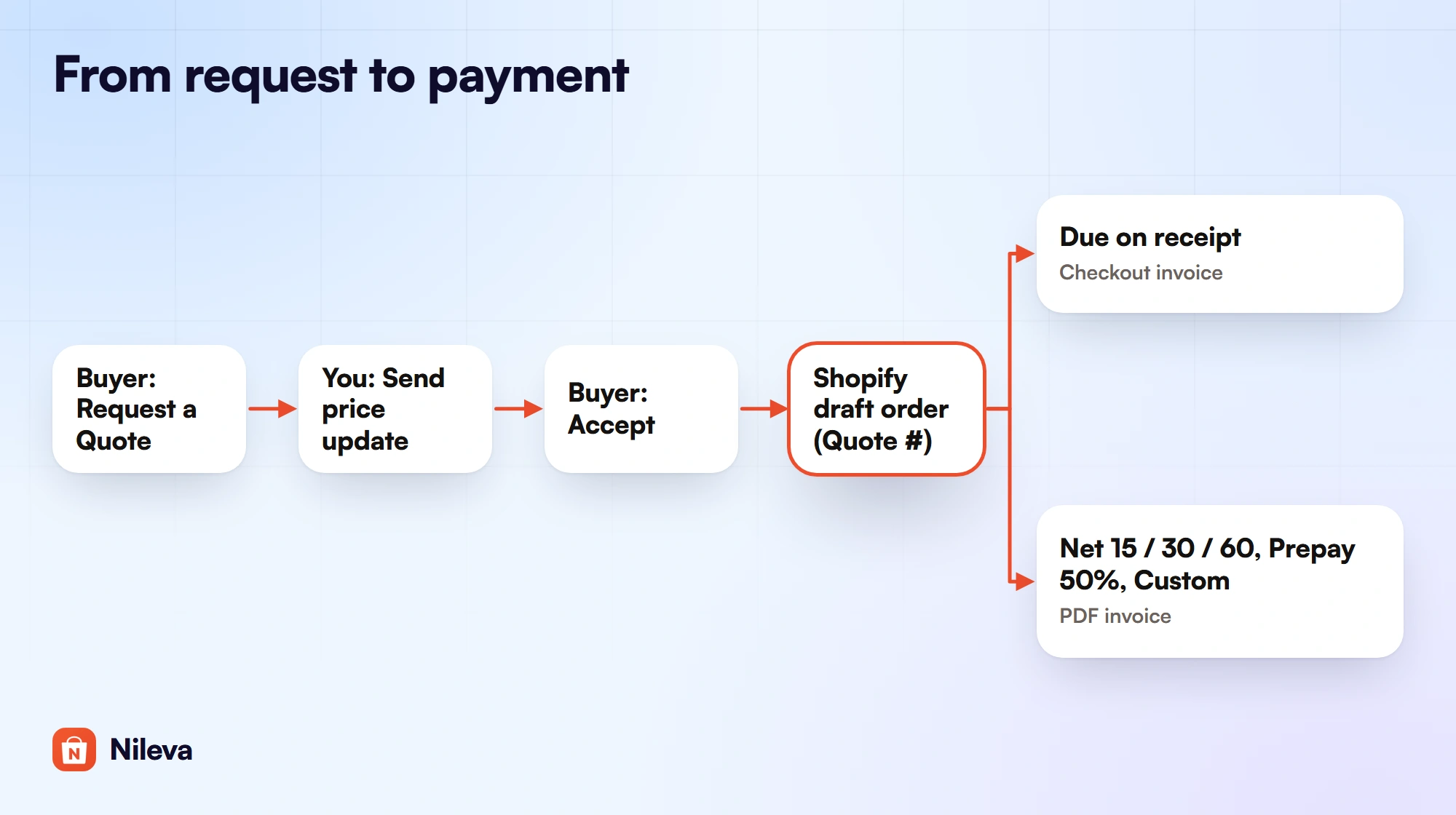
- Quotes on Due on receipt go to a checkout invoice; Net 15, Net 30, Net 60, Prepay 50% and Custom terms send the buyer a PDF invoice to pay offline.
When B2B buyers need a quote instead of a cart
A cart works when the price on the page is the price the buyer expects to pay. A quote is a price you agree before the order exists. It is the better tool when the listed price isn't the end of the conversation.
The usual cases look like this:
- A bulk price. The buyer wants 500 units and proposes a target price below your catalog price. You answer with what you can do.
- Credit terms. The buyer can only order on Net 30 or wants to pay half up front. The terms are part of the deal, so they belong in the quote.
- A custom deal for a repeat customer. You agree a price for this order without changing your price lists for everyone.
- Paperwork. Their purchasing team needs a PO number, a delivery deadline or a VAT ID recorded before anything is ordered.
There is also a case for the merchant: filtering requests that would never become orders. A quote tool that rejects offers far below your catalog price, or quantities that are really retail orders, saves you replying to them one by one.
What Shopify gives you natively
Shopify has two tools that cover the second half of a quote: turning an agreed price into an order and getting it paid.
Draft orders. In Shopify admin you can create an order yourself for phone, email or in-person sales and send it as an invoice with a secure checkout link (Shopify Help Center: create orders). You set the prices, discounts and shipping, then either send the invoice or choose Payment due later and pick a payment term (create a draft order). One housekeeping detail: drafts created on or after April 1, 2025 are deleted automatically after a year without activity.
Checkout to draft, for B2B companies. If you use Shopify's B2B companies, you can require a company location to submit all orders as drafts for review. Those buyers see a Submit for approval button at checkout instead of paying, and the order waits on your Drafts page until you create it or send the invoice (B2B draft orders). Shopify's plan table lists both "checkout to draft" and "draft order to invoice" on Basic, Grow, Advanced and Plus (B2B plan features).
What these tools don't describe is the first half: a form on the product page where the buyer proposes quantities and a target price, and a thread where you counter-offer before any order exists. Without that, the negotiation stays in your inbox and you retype the agreed numbers into a draft order by hand.
How a Shopify request a quote flow works
The Quotes feature of B2B Wholesale Pricing adds that first half and hands the result to Shopify's draft orders. Here is the whole path, step by step.
The buyer asks from the product page
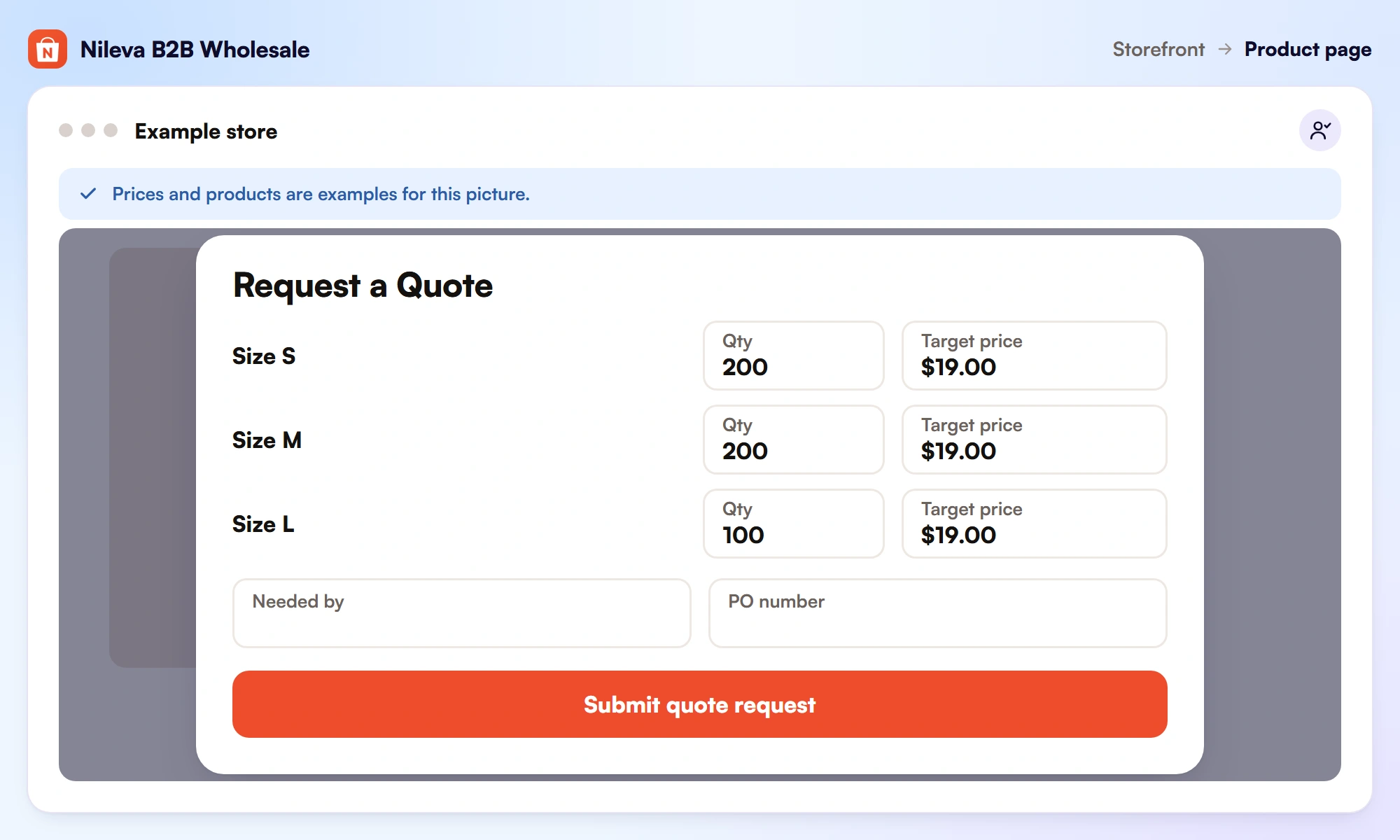
Eligible buyers see a Request a Quote button below the buy buttons. It opens a modal on the same page, with no redirect, listing every variant of the product as a row (how a buyer requests a quote).
The buyer enters a quantity on the variants they want; rows left at 0 are skipped. Each row takes an optional target price, and if it is left blank the modal fills in the current catalog price as a starting point. A logged-in buyer's name and email are filled in for them.
You decide which extra fields appear: a message, file attachments (PNG, JPG, PDF, DOCX, CSV or XLSX, up to 2 MB, only the types you tick), a needed-by date, a PO number and a Tax or VAT ID. When the buyer clicks Submit quote request, the quote lands in your inbox as Pending and you get an email.
You reply with prices, shipping and validity
The Quotes inbox works like an email client, with tabs for Pending, Replied, Negotiating, Accepted, Rejected and Expired. Opening a quote shows the buyer's details (linked company, customer group, tags and their quote history) next to the items they asked for (how you reply with prices).
On each line you edit the Unit price you are offering, with the buyer's target and your catalog price shown for reference. Below the lines you can add an order discount (a fixed amount or a percentage, with your own title), a shipping fee with a label such as "Negotiated freight", a Validity of 3, 7, 14 or 30 days or a custom date, and the Payment terms.
Two buttons send your answer. Send message only adds a note to the thread without changing the offer, which is useful for questions such as "do you need these before the 15th?". Send price update saves the prices, adjustments, validity and terms as a new revision and emails the buyer.
The buyer accepts, declines or replies
While a quote is Pending, the buyer can only view it. The Accept, Decline and reply buttons appear once you have sent prices. If the buyer replies or you send a counter-offer, the status moves to Negotiating, and the thread keeps every revision, so both sides can see how the price moved.
When the buyer clicks Accept, the app creates a Shopify draft order with the agreed prices, discount and shipping. The quote number goes into the order's note and a "Quote #" attribute, so you can trace it in Shopify Orders. Every quote has its own page that the emails link to, and buyers in one of your customer groups also see all their quotes in the B2B Customer Portal under My Quotes.
Payment terms on an accepted quote
The payment term you set on the quote decides what happens the moment the buyer accepts. There are six options: Due on receipt (the default), Net 15, Net 30, Net 60, Prepay 50% and Custom.
| Payment term on the quote | After Accept | How the buyer pays |
|---|---|---|
| Due on receipt | Redirect to a Shopify checkout invoice | Now, with your checkout's payment methods |
| Net 15 / Net 30 / Net 60 | PDF invoice emailed with your instructions | Offline (bank transfer, wire, check); you mark the order paid |
| Prepay 50% | PDF invoice emailed | Offline, as your invoice sets out |
| Custom | PDF invoice with your own note | As your note describes |
The PDF invoice carries your store name, the quote number and dates, the buyer, every line with its quantity and unit price, the subtotal, discount, shipping and total, and a highlighted payment-terms line such as "Net 30 — pay within 30 days". For net terms, the app's changelog adds that accepted quotes carry Shopify's native payment term onto the draft order, so the term is visible in Shopify too (changelog). The whole flow works on Basic, Grow, Advanced and Plus; you don't need Shopify Plus.
When the money arrives, open the order in Shopify admin, choose Mark as paid and pick the manual payment method that matches, such as a bank transfer. The quote then shows the linked order. If you want a deeper look at credit terms, read our guide to net 30 payment terms.
Worked example: a 500-unit quote
Example: a shop that sells a product at a catalog price of $25 a unit. A buyer requests 500 units with a target price, and you reply with $19 a unit.
- At the catalog price: 500 × $25 = $12,500.
- At your quoted price: 500 × $19 = $9,500.
- The difference: $12,500 − $9,500 = $3,000, which is $3,000 ÷ $12,500 = 24% off the catalog total.
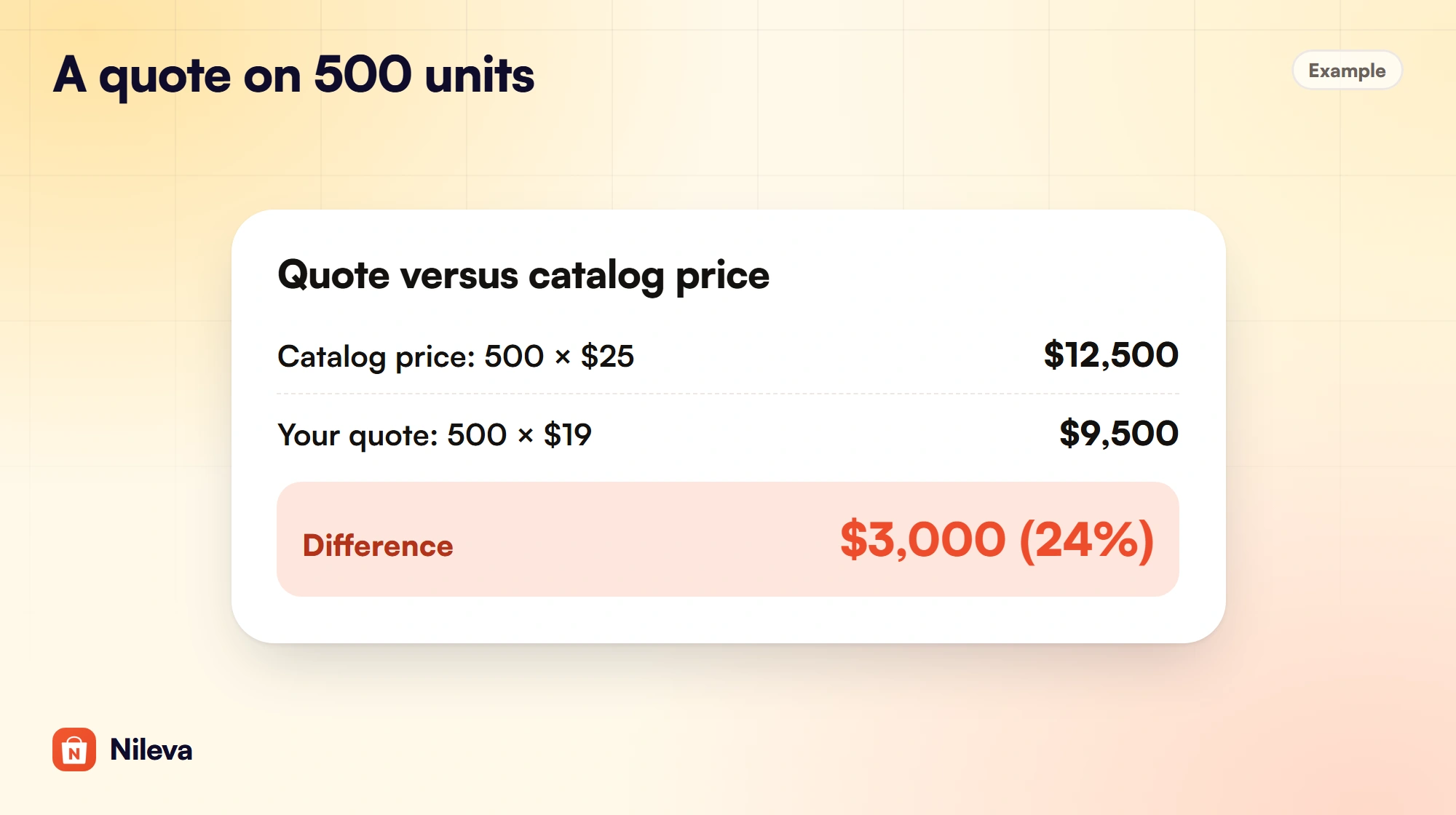
The quote is where you protect the margin on that $3,000. You can hold the unit price and add free shipping instead, offer $19 only with Prepay 50%, or keep a short validity so the price doesn't outlive your next cost increase. Each of those is a field on the quote, and each revision stays in the thread.
Keep low offers and expired quotes under control
An open Shopify request a quote form attracts some requests you would never accept. The Quote settings have two filters for them (enable Quotes):
- Floor percentage below catalog. A request whose target price is more than your chosen percentage below the catalog price is rejected automatically.
- Minimum total quantity. A request whose total quantity across all items is below your threshold is rejected, which keeps retail-sized enquiries out.
A rejected buyer sees a plain message instead of an error, and it says what to change: the minimum total quantity, or how far below the listed price a target may go. That means the buyer learns your threshold, so set it at a number you are willing to show. If you open the form to the public, a rate limit per IP caps how many quotes one visitor can send in an hour.
Quotes also clean up after themselves. Every offer has a validity date. With the reminder switched on, the buyer gets an email 24 hours before it ends. When the date passes without an answer, the status changes to Expired and the buyer is told.
The emails along the way are templates you can edit and translate: Quote Submitted (to you), Quote Reply, Quote Accepted (to you), Quote Invoice for net terms with the PDF attached, Quote Expiring Soon and Quote Expired.
Quotes, Quick Order or Draft Orders?
Quotes are one of several ordering tools in the app, and each fits a different buyer. The deciding question is whether the price is already agreed.
| Tool | Use it when | Price |
|---|---|---|
| Quick Order | The buyer knows what they want and adds many products by SKU or by pasting a list | Your listed B2B prices |
| Variant Drawer | The buyer orders many sizes or colours of one product at once | Your listed B2B prices |
| Quotes | The buyer wants a custom price before committing | Negotiated per quote |
| Draft Orders | The buyer orders the whole cart on account and you confirm before payment | Your listed B2B prices, terms from the buyer's group |
Many stores use more than one. A regular stockist reorders through Quick Order at their usual wholesale pricing, and asks for a quote only when an order is unusually large. For the cart-on-account flow, see our guide to draft orders for B2B.
How to turn quotes on
Quotes are off until you set them up. The feature is part of the app's Advanced plan.
- In Shopify admin, open Apps → Nileva B2B → Quotes and click Quote settings.
- Choose the Eligibility. Approved B2B only (the default) accepts requests from approved wholesale buyers: members of your customer groups, contacts of an active company in the app, and customers whose tags contain
b2b,wholesaleortier. Any logged-in customer is looser. Public lets anyone, including guests, ask; combine it with the rate limit and the auto-reject filters. - Pick the Default validity (3, 7, 14 or 30 days, or Custom). You can change it on any single quote.
- Tick the form fields buyers should see: target price per line, needed-by date, file attachment and its allowed types, PO number, Tax or VAT ID.
- Switch on the notifications you want: an email to you on a new quote, to the buyer on your reply, and to the buyer 24 hours before expiry.
- Set the auto-reject rules and your reject message, then click Save.
- In Online Store → Themes → Customize, open the product page template, add the Request a Quote app block under the buy buttons and save.
The eligibility check runs both on the storefront and on the server when a quote is submitted, so a visitor can't get around it by editing the page.
Frequently asked questions
Does Shopify have a request a quote feature?
Shopify has draft orders with emailed invoices and, for B2B companies, a checkout that submits orders as drafts for your approval. A form on the product page where buyers propose quantities and target prices, with a back-and-forth thread, comes from an app.
Do I need Shopify Plus for B2B quotes?
No. The app's Quotes run on Basic, Grow, Advanced and Plus, including the PDF invoice flow for Net 30, Prepay 50% and Custom terms.
Can buyers attach files to a quote request?
Yes. Buyers can attach PNG, JPG, PDF, DOCX, CSV or XLSX files up to 2 MB, limited to the types you allow in Quote settings.
What happens when a buyer accepts a quote?
The app creates a Shopify draft order that carries the quote number. On Due on receipt the buyer goes straight to a checkout invoice; on Net, Prepay 50% or Custom terms they get a PDF invoice by email and pay offline.
Can quotes expire?
Yes. Each offer has a validity of 3, 7, 14 or 30 days or a custom date. The buyer can get a reminder 24 hours before it ends, and the quote is marked Expired when the date passes.
Try it
Let buyers request a quote from any product page.


