 Nileva

Shopify tax-exempt customers are buyers your checkout charges no tax, or no tax of a specific kind, because of a setting on their customer record or their company location. This guide shows Shopify's own settings, a trap with tax-included prices that catches many stores, and how to check EU VAT numbers, pick the right exemption type and exempt a whole wholesale group with an app. One thing stays the same throughout: Shopify calculates the tax, and the settings only tell it who is exempt.
Key takeaways
- A Shopify customer can be set to Collect tax, Don't collect tax or Collect tax unless exemptions apply, where you pick the specific exemptions.
- A B2B company location carries its own Tax ID and the same three tax settings, on every plan that supports Shopify B2B.
- With tax-included prices, Shopify still charges an exempt customer the full listed price, so check your pricing setup before you promise a buyer a tax-free total.
- An app can record Tax IDs, check EU VAT numbers against the EU's VIES service, set the exemption on the Shopify customer and exempt a whole customer group, while Shopify keeps calculating the tax.
Why wholesale buyers are often tax-exempt
Retail customers pay tax because they are the end consumer. Many wholesale buyers are not: they resell your goods, or they buy as a business that accounts for tax in another way. The app's documentation lists three typical cases (Tax-exempt customers):
- EU reverse charge: a business buyer in the EU with a valid VAT number.
- Resale: a US or Canadian reseller with a resale certificate.
- Fully exempt organizations: for example nonprofits or government buyers.
Whether a given buyer qualifies, in which region, and what proof you must keep depends on the law where you sell. This article explains the settings, not the law.
Tax rules differ by country, state and product. Confirm with a tax adviser which of your buyers may be exempt and which documents you must keep before you switch any exemption on.
Shopify tax-exempt customers: the native settings
Shopify has exemption settings in two places: on a customer, and on a B2B company location. Both are described on the Help Center page on tax overrides and exemptions.
On a customer
- In Shopify admin, go to Customers and open the customer.
- In the Customer section, open the menu and click Manage tax settings.
- Choose Collect tax, Don't collect tax, or Collect tax unless exemptions apply. For the third, pick the exemptions in the Select exemptions menu.
- Click Save.
Shopify notes two conditions. Customer exemptions take precedence over tax overrides, including overrides on shipping. And the buyer needs to check out with the same email address as the one on their customer account.
On a B2B company location
If you use Shopify's native B2B, each company location has its own tax details. Go to Customers → Companies, open the company and the location, then Edit tax details to enter the Tax ID; if you use Shopify Tax and the location ships to the UK or the EU, the field is labelled VAT number. The location then gets the same three tax settings.
Shopify says company location exemptions are available on plans that support Shopify B2B (tax-exempt company locations), which are Basic, Grow, Advanced and Plus (B2B features by plan). The Don't collect tax option for company locations arrived on September 5, 2024, to make exemptions simpler in places where Shopify has no predefined exemption (Shopify changelog). If you are not sure whether native B2B fits your plan, see our guide to Shopify B2B without Plus.
The tax-included pricing trap
Shopify's page carries a warning worth reading twice: if you use tax-included pricing, a tax-exempt customer "will still be charged the full listed product price". The exemption only lowers the total when your prices exclude tax. The same page says the setting that includes or excludes tax based on the customer's country changes how prices are shown, unless a product has a fixed price in a catalog or market.
Example: a store sells one product and collects tax at 20% (an example rate). The tax on €100 is €100 × 0.20 = €20.
| Store setup (example rate 20%) | Listed price | Regular buyer pays | Tax-exempt buyer pays |
|---|---|---|---|
| Prices exclude tax | €100 | €120 (€100 + €20 tax) | €100 |
| Prices include tax | €120 | €120 | €120, the full listed price |
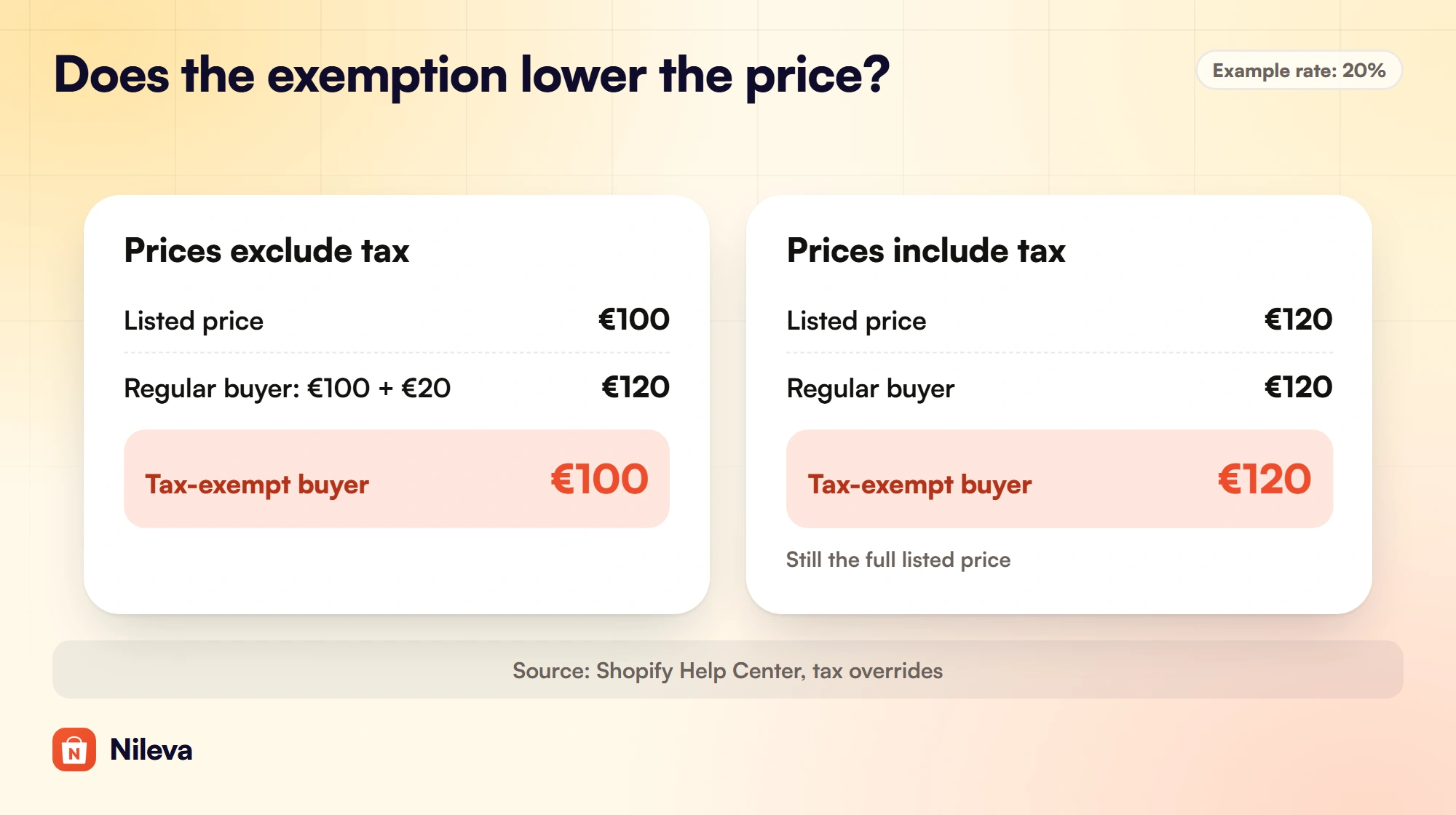
If your store shows tax-included prices to everyone, test an exempt account at checkout before a wholesale buyer finds the difference on their invoice.
Managing tax-exempt customers at scale
The native settings handle Shopify tax-exempt customers one record at a time. Shopify checks VAT numbers in one place: on stores that use Shopify Tax and have a fulfillment location in the EU, business buyers can enter a VAT number at checkout, and Shopify checks it against the EU's VIES service before it removes VAT on an eligible cross-border order (VAT validation in checkout). That check runs on guest and Shop Pay checkouts, not on B2B-specific checkouts, and the tax settings page describes no check for a number you type into a customer or company record.
With a handful of trade accounts that is fine. With dozens of EU businesses and US resellers, the work is in checking numbers, choosing the right exemption and keeping a record of who you approved.
Nileva B2B Wholesale Pricing handles this under Tax → Tax-exempt customers. It is a Platinum feature ($80 a month or $672 a year, with a 7-day free trial once per store); on lower plans, opening the page takes you to the Plans page.
| Task | Shopify alone | The app's Tax-exempt customers |
|---|---|---|
| Set an exemption | Per customer or company location | Per customer, applied to the Shopify customer record when you approve |
| Check an EU VAT number | At checkout only, on Shopify Tax stores that fulfill from the EU, not on B2B checkouts | Validate against VIES before you approve, with optional auto-approve |
| Exempt many buyers | Edit each record | One switch per Customer Group |
| Limit an exemption to dates | Change the setting by hand on the day | Active from and Active until, checked daily |
| Find exempt orders | Not covered on that Help Center page | Order tags and a VAT number note on each exempt order |
Add, validate and approve
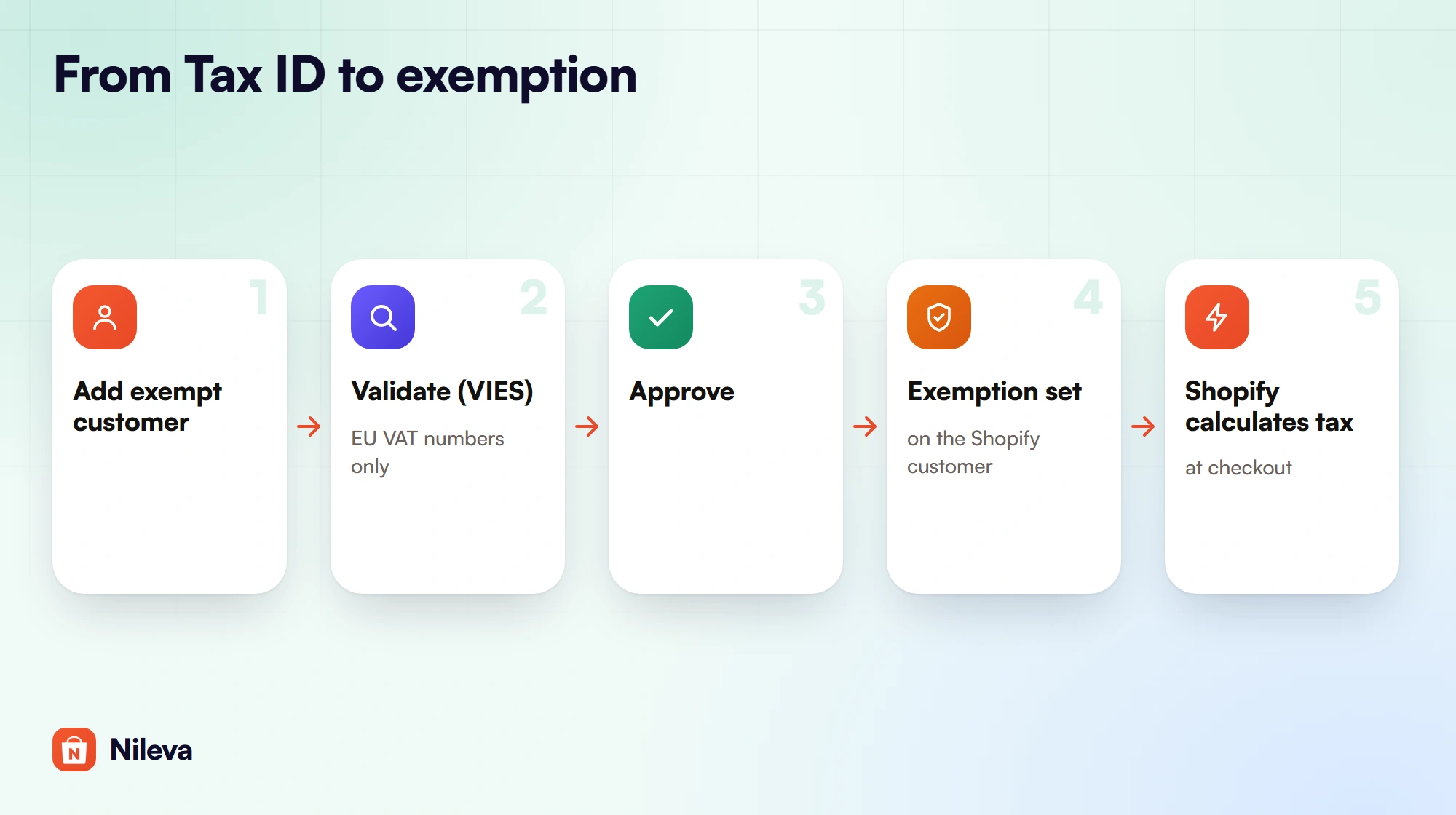
- Click Add exempt customer.
- Pick the Customer. The list shows only your B2B customers: members of your Customer Groups, contacts of your Companies and approved registrations. If someone is missing, add them to a group or company first.
- Enter the Tax ID / VAT number (required) and choose the Exemption type.
- Optionally set Active from and Active until, then click Add. The row appears as Pending, and nothing changes in Shopify yet.
- For an EU VAT number, click Validate. The VIES column shows VIES valid or VIES invalid, and the row moves to Validated or Rejected.
- Click Approve. The row becomes Exempt and the exemption is set on the Shopify customer.
Two details save time. If a Tax ID is entered without its country code and the customer's default address is in an EU country, the app adds the country code, so 23432412313213 for an Italian customer becomes IT23432412313213. Greek numbers start with EL, not GR. If VIES can't be reached, the column stays Not checked; try Validate again later.
The Validate button appears only on rows whose number starts with an EU country code. For UK, US, Canadian and other Tax IDs, review the buyer's documents yourself, then click Approve. To skip the click for EU numbers, turn on Auto-approve customers whose VAT ID passes VIES (off by default).
Choose the exemption type
Each type maps to a different setting on the Shopify customer (exemption types):
| Exemption type | Use it for | What is set on the Shopify customer |
|---|---|---|
| Blanket (no tax at all), the default | Customers who pay no tax anywhere | Marked tax-exempt |
| EU reverse charge | EU business buyers under reverse charge | Shopify's EU reverse-charge exemption |
| Resale (per state/province) | Resellers with a resale certificate | Shopify's reseller exemption for the region you pick: 50 US states, DC, or British Columbia, Manitoba and Saskatchewan |
Blanket is the blunt option: it removes all tax, including on a sale inside the buyer's own country. EU reverse charge is narrower: Shopify describes it as covering purchases within the EU shipped from outside the buyer's own country, and purchases shipped from the EU to the UK. A resale exemption is narrower too. Shopify describes each reseller exemption by its region, for example "in California" (TaxExemption reference), so pick the state or province on the buyer's certificate.
Approving in the app sets exactly the type you chose and replaces any exemptions already on that customer, including ones you set in Shopify admin. Revoke clears them all.
Buyers who registered with a Tax ID
The Tax ID field is a built-in field of the app's registration form on every plan. On Platinum, when you approve a registration that includes one, the buyer lands in Tax-exempt customers as Pending, and EU numbers are checked against VIES in the background. EU VAT numbers start as EU reverse charge, others as Blanket. For a US reseller, change the type to Resale before you approve: add the same customer again with the new type, which updates their row.
On Advanced and above, a File upload field on the form lets applicants attach a tax certificate or reseller permit, stored in Shopify Files. The full setup is in our guide to the wholesale registration form.
Exempt a whole group or a date window
Under Exempt a whole customer group, pick the Customer group and turn on Exempt this whole group (automate exemptions). Every current member becomes tax-exempt in the background. Members without a row get one marked via group, with the type Blanket (no tax at all) and no Tax ID. Members you revoked are skipped.
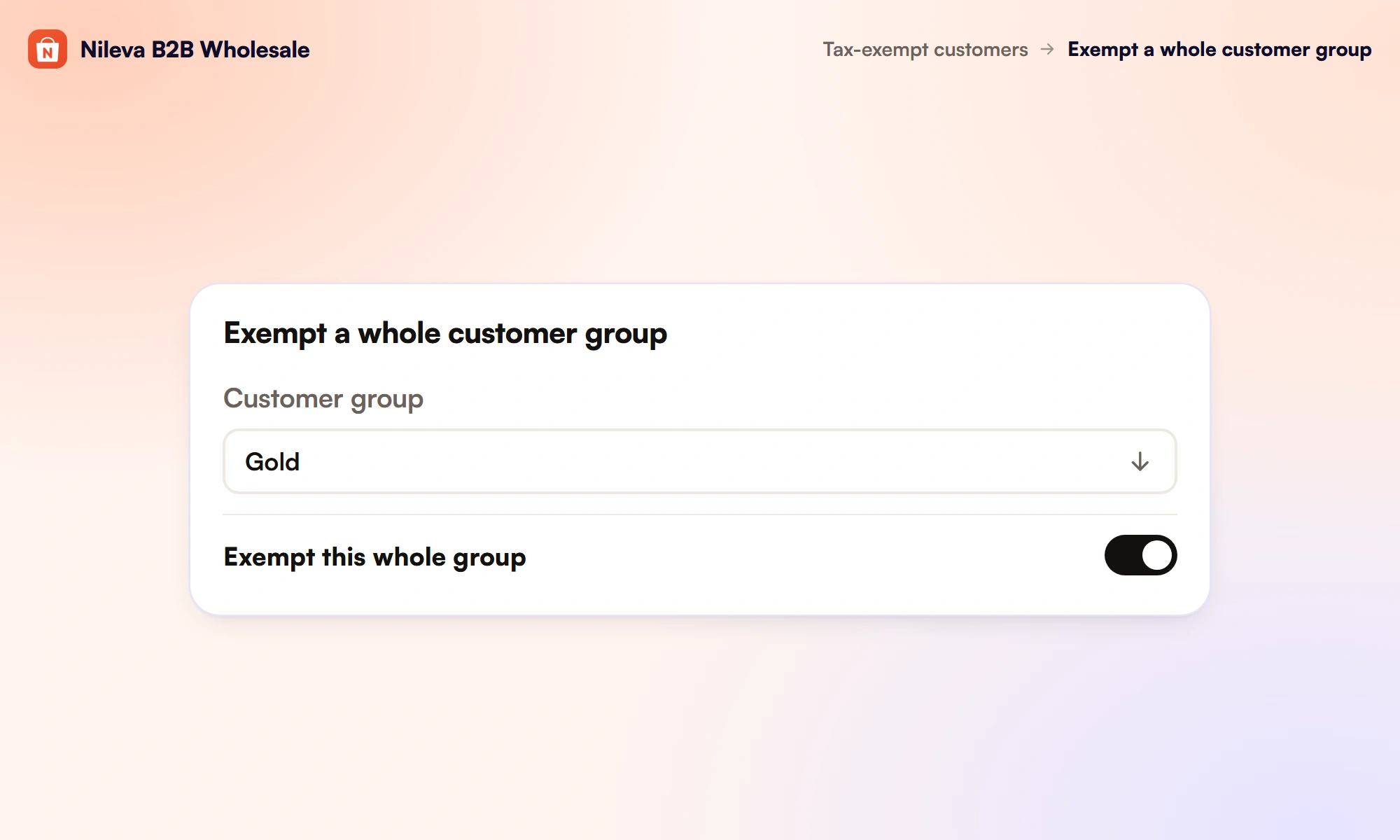
While the switch is on, a member you add on the Customer Group page becomes exempt, and one you remove there becomes Suspended. Members who join another way, such as a registration approved into the group, are not picked up: add them with Add exempt customer. Turning the switch off suspends every row the group created.
The Blanket default matters. If the group holds EU businesses that should get reverse charge, add them one by one with that type first. A member who already had a row keeps it, with its Tax ID and type, and the group can then make it Exempt.
For a time-limited exemption, set Active from and Active until. The dates time an exemption you approved; they never approve anyone. Active until is the first day without the exemption, and dates count from midnight UTC. For an exemption that covers August, use Active from 2026-08-01 and Active until 2026-09-01: 31 days, August 1 to August 31. The app switches dated exemptions on and off at a daily check at 03:30 UTC, so the change lands at that time on those days, not at midnight. A row approved before its dates start shows Suspended until then.
What each status means
Each customer has one row, and its status tells you what Shopify knows about them right now. Filter the list by status from the dropdown above the table.
| Status | Meaning |
|---|---|
| Pending | Added, not approved; nothing changed in Shopify |
| Validated | The VAT number passed VIES; approve to apply |
| Exempt | Tax-exempt now |
| Suspended | Approved but off for now: the group's exemption is off, the customer left the group, or today is outside the dates |
| Revoked | Turned off by you; only Approve brings it back |
| Rejected | The VAT number failed VIES; you can still approve after checking it another way |
To change the Tax ID or type of an Exempt row, click Revoke, add the customer again with the new details, then Approve.
Finding exempt orders later
When a customer whose row is Exempt places an order, the app tags it nileva-tax-exempt plus one of nileva-tax-blanket, nileva-tax-reverse_charge or nileva-tax-resale. It adds two note attributes, VAT number and Tax exemption, and a metafield orbit.vat_number for reports and exports. Filter your Shopify order list by those tags at the end of a tax period. Orders from before the tag rename carry orb2b-tax-*, so search for tag:nileva-tax-exempt OR tag:orb2b-tax-exempt.
Two limits apply. An order is tagged only if the customer's row has a Tax ID, so members exempted through a group without one are not tagged. And the tags record the buyer's status in the app at the time of the order; the tax on the order is whatever Shopify calculated.
What the app does not do
- It doesn't calculate tax. Rates, regions and tax on shipping come from Shopify and your store's tax settings. If your store doesn't collect tax in the buyer's region, the exemption changes nothing, so test in a region where you do.
- It doesn't merge with exemptions you set by hand. Approving replaces them.
- It doesn't offer Validate for non-EU numbers. UK, US and Canadian IDs are your call.
- It follows only some changes made in Shopify admin. A Blanket row follows a customer you mark exempt or not exempt there; EU reverse charge and Resale rows don't.
- Its docs cover the customer record, not company locations. Set a native company location's tax details in Shopify admin as shown above.
To decide which buyers get which wholesale price in the first place, start with our Shopify wholesale pricing guide.
Frequently asked questions
How do I make a customer tax-exempt on Shopify?
Open the customer, click Manage tax settings, and choose Don't collect tax, or Collect tax unless exemptions apply and pick the exemptions. The buyer must check out with the email on their account.
Can Shopify check EU VAT numbers?
At checkout, yes: on stores that use Shopify Tax with a fulfillment location in the EU, buyers can enter a VAT number that Shopify checks against VIES, though not on B2B-specific checkouts. For numbers on customer records, the app checks EU VAT numbers against VIES before you approve the exemption, and can approve valid ones automatically.
Can I exempt all my wholesale customers at once?
Yes, on the Platinum plan: turn on Exempt this whole group for a Customer Group. Members get Blanket exemptions, so add EU reverse-charge or resale buyers individually with their own type.
Does the app calculate the tax?
No. It sets the exemption on the Shopify customer, and Shopify calculates the tax at checkout from that and your store's tax settings.
What happens to exemptions already set in Shopify?
Approving in the app replaces them with the type you chose, and Revoke clears all of them. Check a customer's existing settings before you approve.
Try it
Check VAT numbers and exempt wholesale buyers from one list.


