 Nileva

A Shopify reorder reminder is an email that reaches a wholesale buyer at about the time their stock runs low and takes them straight back to the products they bought last time. This guide covers what Shopify gives you natively, how to build reminders yourself with Shopify Flow, and how the reminder emails in our app work, with a method for picking the right day and the traps to check before you switch them on.
Key takeaways
- Shopify B2B includes easy reorders on every B2B plan: buyers duplicate a past order from their customer account. Shopify B2B doesn't email buyers a reminder on its own; that takes a Flow workflow, a marketing automation or an app.
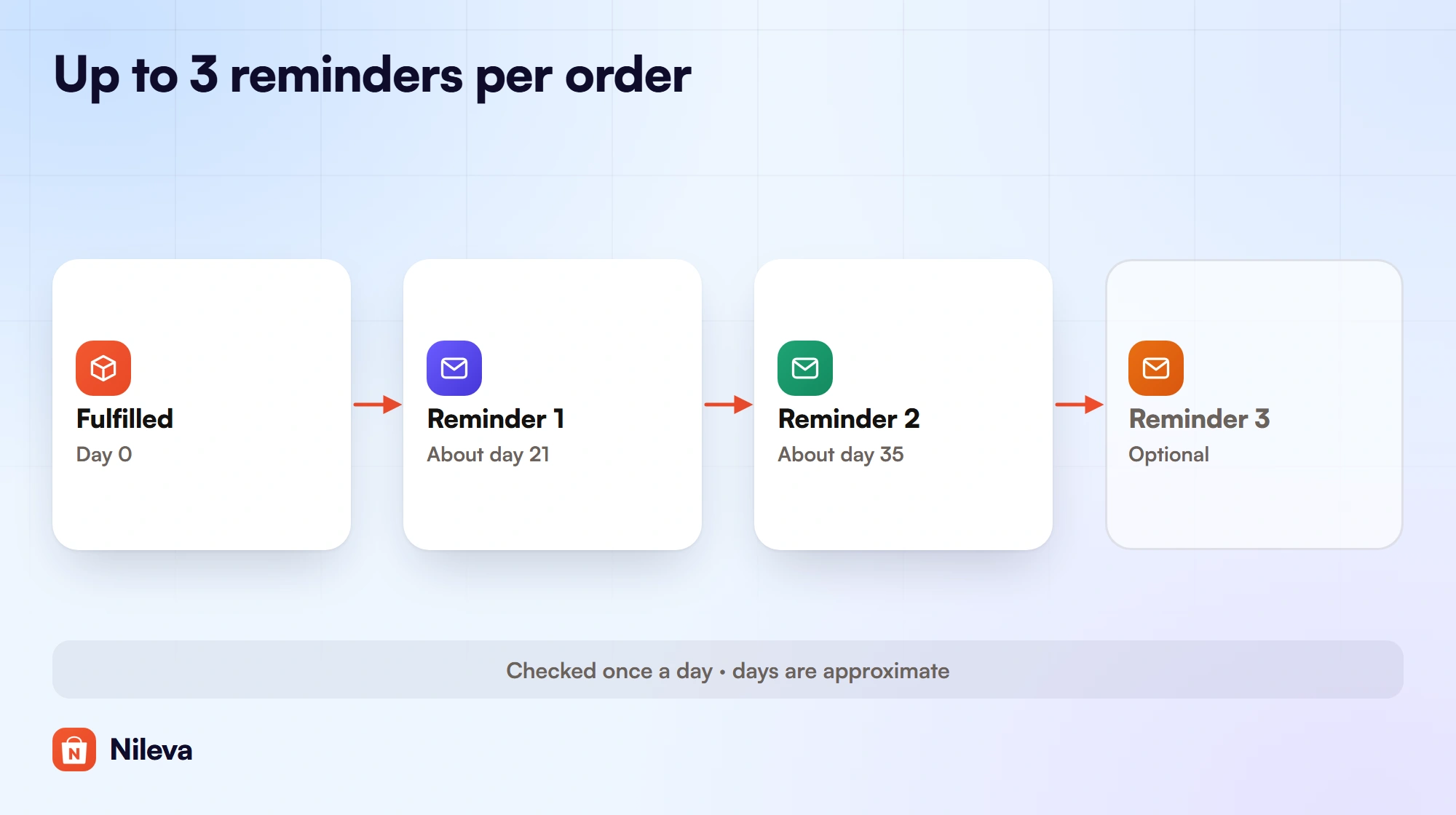
- The app emails up to three reminders per order from a once-a-day run, around the days after fulfillment you choose. Treat those days as approximate.
- The link in the email opens a reorder page that shows the buyer's price today, not the price on the old order.
- Reminders are tied to each order, not to the buyer, so a buyer who has already reordered can still get the later reminders for the old order. Plan your second and third steps with that in mind.
Why wholesale buyers need a reorder nudge
A retail shopper buys when they feel like it. A trade buyer buys when the shelf empties: a café runs through coffee beans every week, a salon through shampoo every few months. That cycle is predictable from the size of their last order, which makes it the right moment to remind them.
The cost of missing that moment is concrete. If the buyer notices too late, they order from whoever can deliver fastest, and that may not be you. A reminder that arrives a week before the shelf empties, with the last order ready to repeat, removes the reason to shop around.
What Shopify gives you natively
Before adding an app, it is worth knowing which part of this Shopify already covers, and which part it leaves to you.
Easy reorders (Buy Again) in customer accounts
Shopify lists easy reorders among the B2B features on Basic, Grow, Advanced and Plus (Shopify B2B features by plan). Shopify describes it as letting B2B customers duplicate a past order through customer accounts, with every item added to the cart for them (Shopify Help Center: B2B features). When Shopify launched it, the changelog called the button "Buy Again", placed it on the order history and order details pages, and said it is on automatically in stores that use new customer accounts (Shopify Changelog: drive repeat orders for B2B).
That is the reorder itself. It only happens when the buyer remembers to sign in and do it. Note too that the "payment reminders" on the same plan table are about orders with payment terms coming due, not about reordering.
A Flow workflow with a Wait step
You can build a reminder yourself in Shopify Flow. The trigger is Order fulfilled, followed by a Wait step and the Shopify Messaging action Send marketing email. Two limits shape what you can build:
- The Wait action can delay a workflow by at most 90 days per workflow, and a workflow with a longer wait can't be activated (Shopify Help Center: Wait action).
- Order fulfilled starts the workflow each time a fulfillment succeeds, so an order shipped in parts can start it more than once (Shopify Help Center: Order fulfilled trigger).
- Send marketing email only reaches customers subscribed to email marketing (Shopify Help Center: Flow connectors).
You write the email and choose where its link goes, for example the buyer's order history, where Buy Again sits.
The Win back customers template
Shopify Messaging ships a marketing automation called Win back customers. It sends a marketing message once a set time has passed since a customer's last order, and marketing automations send only to customers subscribed to marketing by default (Shopify Help Center: marketing automations). Because it counts from the last order, it suits lapsed customers more than a regular restock cycle.
How Shopify reorder reminder emails work with the app
Nileva B2B Wholesale Pricing adds reminder emails that lead to a reorder page inside its B2B Customer Portal. The portal and the reminders need the Advanced plan or higher (Advanced is $30 a month, with a 7-day free trial once per store); on a lower plan the reminder run skips your store.
The app's documentation describes a run once a day at 06:00 UTC that sends up to three reminders per order. For each step it picks the orders fulfilled within a three-day window ending on the number of days you set, so that one missed run doesn't drop a reminder (reminder schedule). The days are therefore approximate: a reminder can go out up to two days before the day you set.
Which orders get a reminder
The app tags B2B orders nileva-b2b when they are created, and the reminder run looks only at orders with that tag (older orders carry orb2b-b2b, which it also reads). An order counts as B2B when the buyer is in one of your customer groups or a company, carries a customer tag that one of your rules targets, or got the app's discount.
That last condition matters if you run a rule for All customers: a retail order can then be tagged too. Its buyer could get a reminder, but the portal only opens for members of a customer group, so the link would show a page saying reordering is for B2B accounts. Keep reminders for stores where your trade buyers are in groups.
For each order the app then skips a buyer with no email address, a buyer who unsubscribed, a step already sent for that order, and, when the consent setting is on, a buyer who isn't subscribed to email marketing in Shopify.
Switch it on
- In the app, open Orders → Reorder settings and go to the Schedule tab.
- Turn on Enable reorder reminder emails. It is off until you do.
- Enter First reminder (days after fulfillment). The default is 30. Fill Second reminder and Third reminder only if you want them; leave them empty to skip.
- Decide on Only send to customers with marketing consent. It is on by default.
- Edit the email in Settings → Email Templates → Reorder Reminder, then save.
Test one full cycle before you rely on it: set a short first delay, place an order as a customer in one of your groups, fulfill it, and note the day each reminder arrives. Then set your real schedule.
Choosing when to send
Timing decides whether a Shopify reorder reminder helps or annoys. The app has one schedule for the whole store, and it counts from the day you fulfill the order. The app's documentation suggests these starting points by type of product:
| Products | First reminder | Second reminder | Third reminder |
|---|---|---|---|
| Consumables (cosmetics, food, supplies) | 21–30 days | 45–60 days | Empty, or 90 days |
| Non-consumable B2B stock (equipment, parts) | 45–60 days | 90–120 days | Empty |
| High-frequency consumables (printer ink, cleaning supplies) | 14 days | 30 days | Empty |
Work out the first reminder from how fast stock runs out
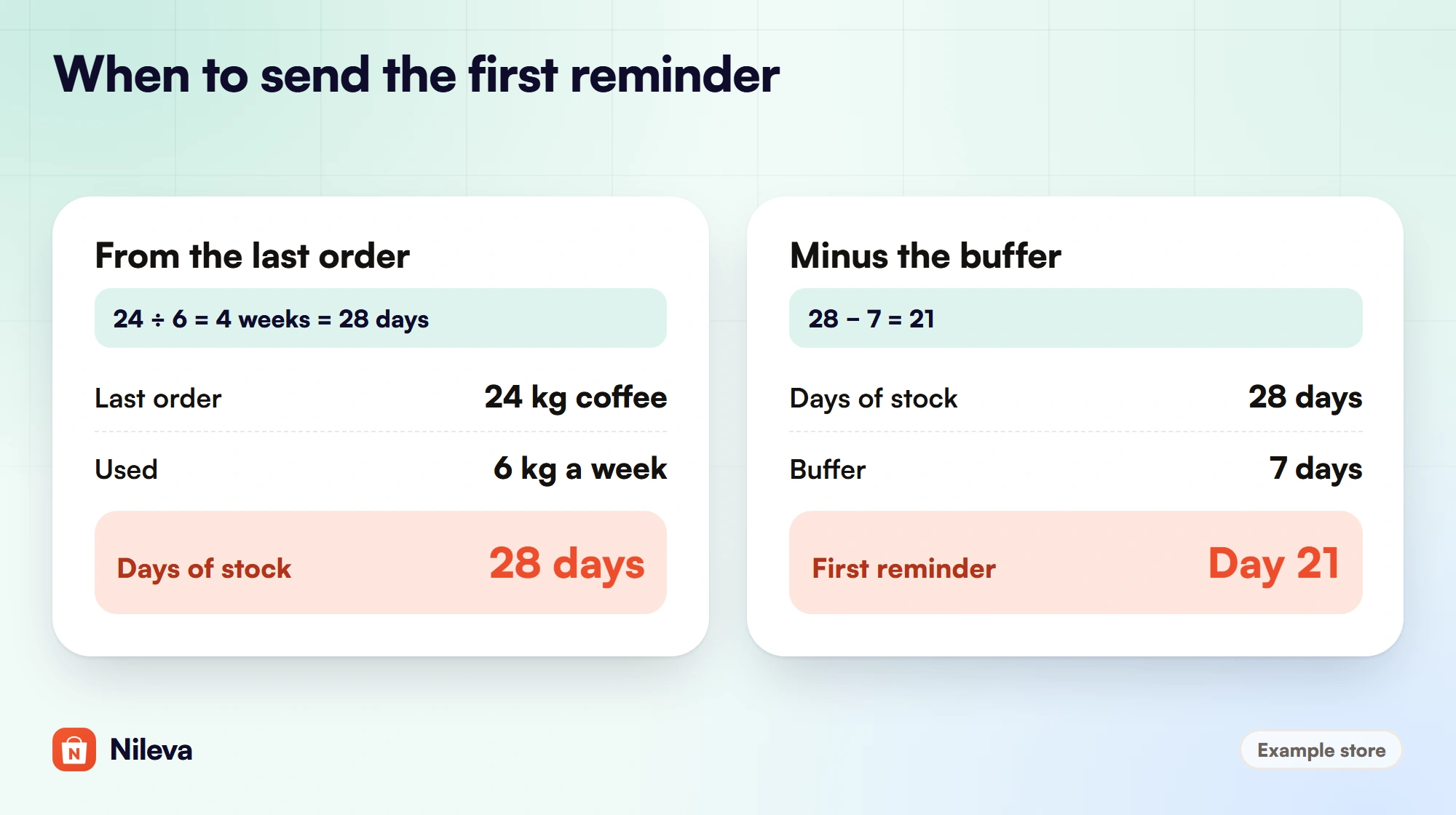
A better number comes from your own buyers. Because the count starts at fulfillment, the delivery time drops out of the sum. The first order spends its transit days on the road before the stock starts, and a reorder spends the same days on the road before it arrives. So the first reminder only has to come early by your handling time plus the few days a buyer takes to act. Call that the buffer:
First reminder = days of stock − buffer, where days of stock is the quantity ordered divided by what the buyer uses per day.
| Example product (buyer) | Last order | Used per week | Days of stock | Buffer | First reminder |
|---|---|---|---|---|---|
| Coffee beans (café) | 24 kg | 6 kg | 28 | 7 | Day 21 |
| Paper cups (café) | 3,000 cups | 500 | 42 | 7 | Day 35 |
| Shampoo (salon) | 48 bottles | 4 | 84 | 10 | Day 74 |
| Printer ink (office) | 6 cartridges | 3 | 14 | 4 | Day 10 |
The café row in figures: 24 kg ÷ 6 kg a week = 4 weeks = 28 days, and 28 − 7 = 21. Since the café buys coffee and cups in one order and the schedule is per order, set the first reminder to 21 for the coffee and the second to 35 for the cups. The salon's day 74 also shows where the app and Flow differ: it fits within Flow's 90-day limit, but the docs' 90 to 120 days for equipment would not fit in one workflow beyond day 90.
Treat every result as approximate. A reminder can arrive up to two days before the day you set, which only adds to the buffer: early is safer than late.
Each reminder belongs to an order. A buyer who reorders after the first email still gets the second and third reminders for the earlier order, and the new order starts its own schedule. Word later reminders so they still make sense to someone who has already restocked, or use only one step for buyers who order often.
Writing the reminder email
The default subject is "Time to reorder from {{shop_name}}?" and the body greets the buyer by first name and links to the reorder page (email template). These shortcodes are filled in for each email:
{{first_name}}: the buyer's first name in Shopify ({{customer_name}}gives the same).{{shop_name}}and{{shop_url}}: your store's name and address.{{days_ago}}: the number of days you set for that step.{{reorder_link}}: the reorder page for that order.{{unsubscribe_link}}: the one-click opt-out.
Three edits make the default better for trade buyers:
- Count from shipping, not ordering. The default says the order was placed
{{days_ago}}days ago, but the number is the days since fulfillment. "It's been about {{days_ago}} days since we shipped your last order" is closer to the truth. - Guard the greeting. A buyer with no first name on their account gets an empty name, so "Hi {{first_name}}," prints "Hi ,". If many of your trade accounts are company names without a contact name, open with "Hello from {{shop_name}}" instead.
- Write for the reader who already restocked. Because of the per-order schedule, the second email should read as a friendly check ("If you've already restocked, ignore this") rather than an alarm.
Every buyer gets the template's main version, so write it in the language most of your trade buyers read, and keep the reorder link near the top so it shows on a phone without scrolling. The email is sent through the SMTP server you set up in the app, or through the app's built-in relay if you haven't set one.
From the email to the cart: one-click reorder at today's price
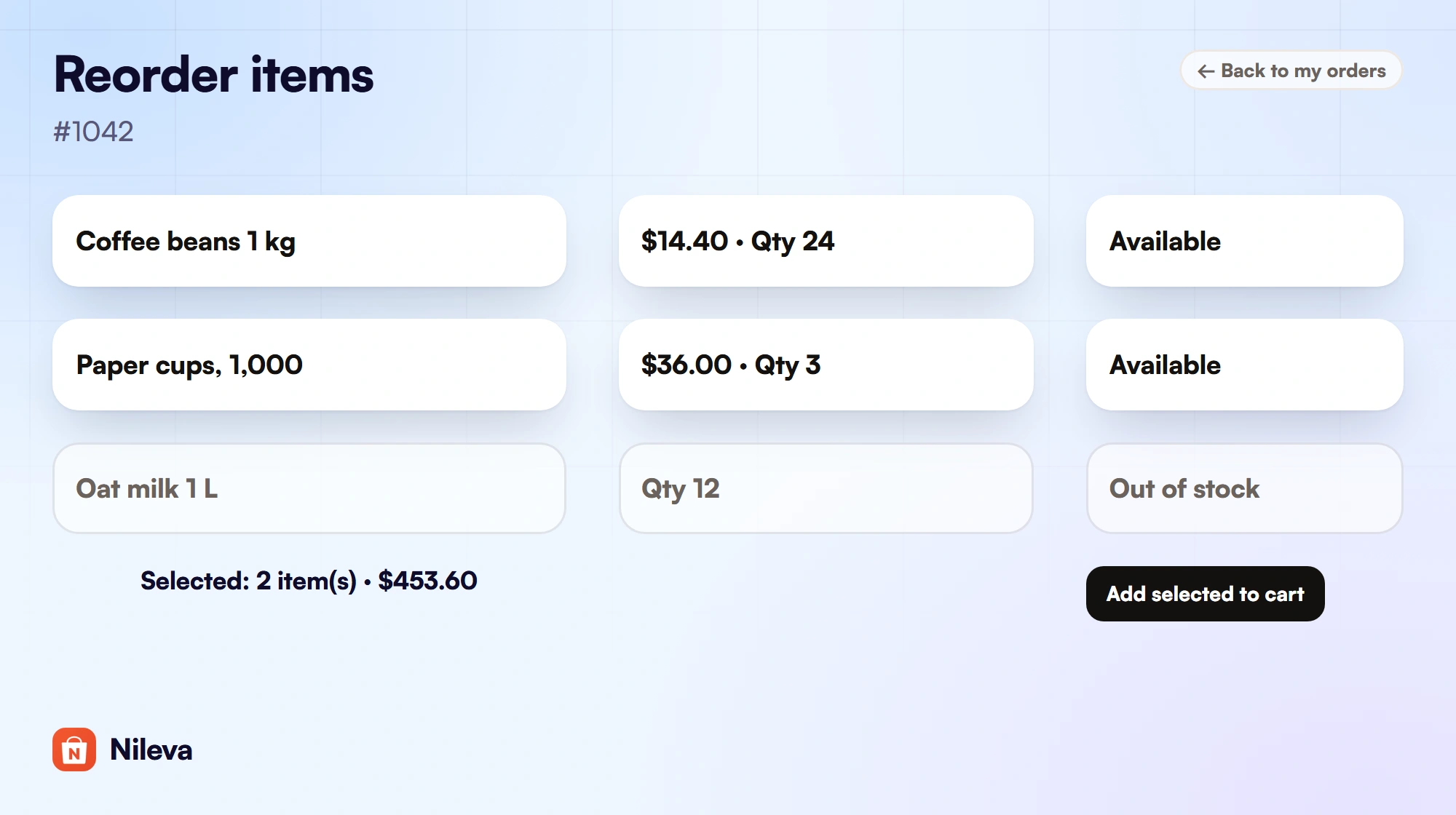
The link opens the order's reorder page in the portal. Each item from the old order appears with a checkbox, its quantity and today's price for that buyer, worked out from their current customer group and your active rules, with volume tiers and your discount strategy applied as they would be at checkout (My Orders and one-click reorder). Changing a quantity reprices the line, so a volume tier shows before the buyer reaches the cart. Out-of-stock items start unticked, and items you no longer sell can't be ticked. Add selected to cart puts the rest in the cart, and the discount is applied at checkout as on any other order.
Example: a café last ordered 24 kg of coffee at $16.20 a kilo, its Silver group price (10% off $18.00). It has since moved to your Gold group at 20% off, so the reorder page shows $14.40 a kilo ($18.00 × 0.80). The 24 kg now cost $345.60 instead of $388.80. With 3 boxes of cups at $36.00, the summary reads 2 items for $453.60, while the oat milk that is out of stock stays unticked.
Buyers don't need the email to reorder. Signed-in group members can open My Orders in the portal at any time, see their last 20 orders with a B2B only filter, and press Reorder on any of them. Add the portal to your store menu so they find it. For buyers who order from a long list rather than from a past order, the quick order form lets them paste SKUs and quantities instead.
Consent and unsubscribe
Only send to customers with marketing consent is on by default. With it on, the app emails only buyers whose email marketing status in Shopify is subscribed. Many trade accounts were created without ever opting in, so check that status on a few of your buyers before you switch reminders on, or the run may find almost no one to email. Whether a reorder reminder counts as marketing where you and your buyers trade is a question for your own legal advice; the setting lets you take the cautious route.
The default template carries a signed one-click unsubscribe link; keep {{unsubscribe_link}} when you edit it, because the app doesn't add one for you. A buyer who clicks it sees a confirmation page and gets no more reorder reminders from your store, for this order or any later one. It stops only these reminders: it doesn't change the buyer's email marketing status in Shopify. There is no way to re-subscribe a buyer from the admin today; the docs say to contact the app's support.
Which reorder route fits your store
| Buy Again (Shopify) | Flow + Send marketing email | App reminders | |
|---|---|---|---|
| Who starts it | The buyer, from their account | Order fulfilled trigger | A daily run at 06:00 UTC |
| Emails sent | None | One per Wait step you build | Up to 3 per order |
| Longest delay | Not applicable | 90 days of waiting per workflow | No limit stated in the docs |
| Who receives it | Not applicable | Customers subscribed to email marketing | B2B-tagged orders; the consent filter is optional |
| Where the buyer lands | A cart with the old order's items | Wherever your link points | A reorder page with today's B2B price |
If your trade buyers already sign in to new customer accounts and you only need the reorder button, Buy Again may be enough. If you want reminders and your buyers subscribe to marketing, a Flow workflow needs no third-party app. If you price trade buyers by customer group and want the email to land on a page that shows their current price, the app's reminders do that. For the rules behind those prices, see our wholesale pricing guide, and for a reorder that must meet a minimum, read Shopify minimum order quantity.
Frequently asked questions
Does Shopify send reorder reminders?
Not by itself. Shopify B2B includes easy reorders, which let a buyer duplicate a past order from their account. A scheduled reminder email takes a Shopify Flow workflow, the Win back customers automation or an app.
How many reminders can I send per order?
With the app, up to three, at roughly the numbers of days after fulfillment you choose. With Flow, as many as you build, within Flow's limit of 90 days of waiting per workflow.
Can I send reminders only to customers who accepted marketing?
Yes. Turn on "Only send to customers with marketing consent" in the Schedule tab; it is on by default. Shopify's own marketing actions send only to subscribed customers anyway.
What price does the buyer see when reordering?
On the app's reorder page, today's price for their customer group and your active rules, with volume tiers applied, not the price on the old order.
Does a buyer who already reordered stop getting reminders?
No. Reminders follow each order, so the second and third steps for an earlier order still go out. Word them for someone who may already have restocked.
Try it
Remind wholesale buyers to reorder and take them straight to their past order at today's price.


